'''
【课程3.1】  Matplotlib简介及图表窗口

Matplotlib → 一个python版的matlab绘图接口,以2D为主,支持python、numpy、pandas基本数据结构,运营高效且有较丰富的图表库

'''
import numpy as np
import pandas as pd
import matplotlib.pyplot as plt
# 图表窗口1 → plt.show()

plt.plot(np.random.rand(10))
plt.show()
# 直接生成图表
输出

# 图表窗口2 → 魔法函数,嵌入图表

% matplotlib inline
x = np.random.randn(1000)
y = np.random.randn(1000)
plt.scatter(x,y)
# 直接嵌入图表,不用plt.show()
# <matplotlib.collections.PathCollection at ...> 代表该图表对象
输出:

# 图表窗口3 → 魔法函数,弹出可交互的matplotlib窗口

% matplotlib notebook
s = pd.Series(np.random.randn(100))
s.plot(style = 'k--o',figsize=(10,5))
# 可交互的matplotlib窗口,不用plt.show()
# 可做一定调整
输出:

# 图表窗口4 → 魔法函数,弹出matplotlib控制台

% matplotlib qt5
df = pd.DataFrame(np.random.rand(50,2),columns=['A','B'])
df.hist(figsize=(12,5),color='g',alpha=0.8)
# 可交互性控制台
# 如果已经设置了显示方式(比如notebook),需要重启然后再运行魔法函数
# 网页嵌入的交互性窗口 和 控制台,只能显示一个

#plt.close()
# 关闭窗口

#plt.gcf().clear()
# 每次清空图表内内容
输出:
array([[<matplotlib.axes._subplots.AxesSubplot object at 0x000000000CA745C0>,
        <matplotlib.axes._subplots.AxesSubplot object at 0x000000000CA7D9B0>]], dtype=object)
'''
【课程3.2】  图表的基本元素

图表内基本参数设置

'''
# 图名,图例,轴标签,轴边界,轴刻度,轴刻度标签等

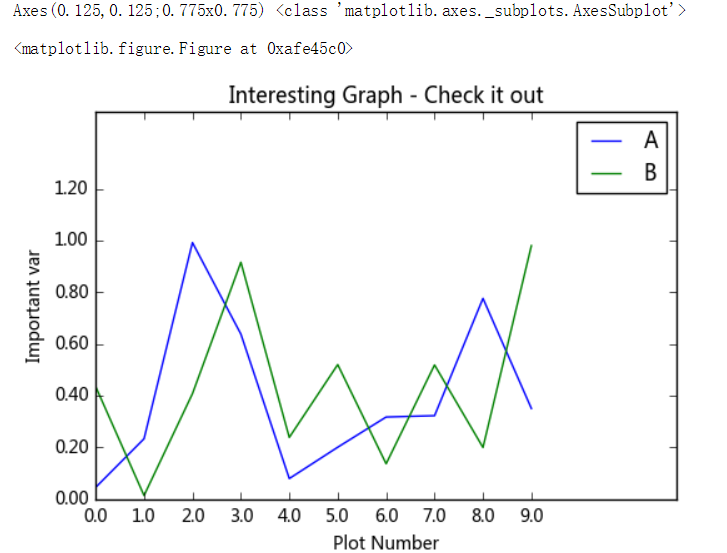
df = pd.DataFrame(np.random.rand(10,2),columns=['A','B'])
fig = df.plot(figsize=(6,4))
# figsize:创建图表窗口,设置窗口大小
# 创建图表对象,并赋值与fig

plt.title('Interesting Graph - Check it out')  # 图名
plt.xlabel('Plot Number')  # x轴标签
plt.ylabel('Important var') # y轴标签

plt.legend(loc = 'upper right')
# 显示图例,loc表示位置
# 'best'         : 0, (only implemented for axes legends)(自适应方式)
# 'upper right'  : 1,
# 'upper left'   : 2,
# 'lower left'   : 3,
# 'lower right'  : 4,
# 'right'        : 5,
# 'center left'  : 6,
# 'center right' : 7,
# 'lower center' : 8,
# 'upper center' : 9,
# 'center'       : 10,

plt.xlim([0,12])  # x轴边界
plt.ylim([0,1.5])  # y轴边界
plt.xticks(range(10))  # 设置x刻度
plt.yticks([0,0.2,0.4,0.6,0.8,1.0,1.2])  # 设置y刻度
fig.set_xticklabels("%.1f" %i for i in range(10))  # x轴刻度标签
fig.set_yticklabels("%.2f" %i for i in [0,0.2,0.4,0.6,0.8,1.0,1.2])  # y轴刻度标签
# 范围只限定图表的长度,刻度则是决定显示的标尺 → 这里x轴范围是0-12,但刻度只是0-9,刻度标签使得其显示1位小数
# 轴标签则是显示刻度的标签

print(fig,type(fig))
# 查看表格本身的显示方式,以及类别
输出:
# 其他元素可视性

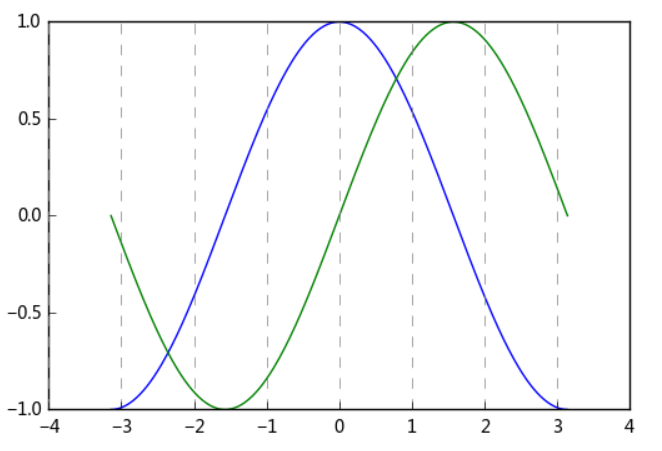
x = np.linspace(-np.pi,np.pi,256,endpoint = True)
c, s = np.cos(x), np.sin(x)
plt.plot(x, c)
plt.plot(x, s)
# 通过ndarry创建图表

plt.grid(True, linestyle = "--",color = "gray", linewidth = "0.5",axis = 'x')
# 显示网格
# linestyle:线型
# color:颜色
# linewidth:宽度
# axis:x,y,both,显示x/y/两者的格网

plt.tick_params(bottom='on',top='off',left='on',right='off')
# 刻度显示

import matplotlib
matplotlib.rcParams['xtick.direction'] = 'out'
matplotlib.rcParams['ytick.direction'] = 'inout'
# 设置刻度的方向,in,out,inout
# 这里需要导入matploltib,而不仅仅导入matplotlib.pyplot


frame = plt.gca()
#plt.axis('off')
# 关闭坐标轴
#frame.axes.get_xaxis().set_visible(False)
#frame.axes.get_yaxis().set_visible(False)
# x/y 轴不可见
输出:
'''
【课程3.3】  图表的样式参数

linestyle、style、color、marker

'''
# linestyle参数

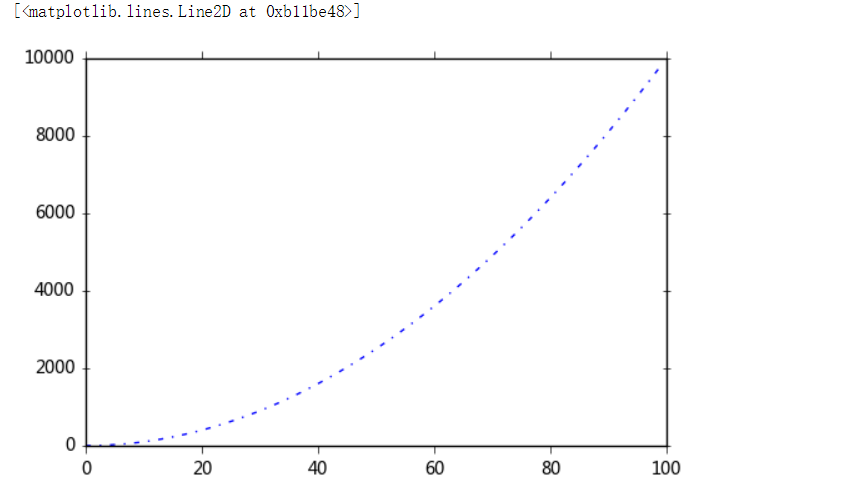
plt.plot([i**2 for i in range(100)],
        linestyle = '-.')
# '-'       solid line style
# '--'      dashed line style
# '-.'      dash-dot line style
# ':'
输出:
# marker参数

s = pd.Series(np.random.randn(100).cumsum())
s.plot(linestyle = '--',
      marker = '.')
# '.'       point marker
# ','       pixel marker
# 'o'       circle marker
# 'v'       triangle_down marker
# '^'       triangle_up marker
# '<'       triangle_left marker
# '>'       triangle_right marker
# '1'       tri_down marker
# '2'       tri_up marker
# '3'       tri_left marker
# '4'       tri_right marker
# 's'       square marker
# 'p'       pentagon marker
# '*'       star marker
# 'h'       hexagon1 marker
# 'H'       hexagon2 marker
# '+'       plus marker
# 'x'       x marker
# 'D'       diamond marker
# 'd'       thin_diamond marker
# '|'       vline marker
# '_'       hline marker
输出

# color参数

plt.hist(np.random.randn(100),
        color = 'g',alpha = 0.8)
# alpha:0-1,透明度
# 常用颜色简写:red-r, green-g, black-k, blue-b, yellow-y

df = pd.DataFrame(np.random.randn(1000, 4),columns=list('ABCD'))
df = df.cumsum()
df.plot(style = '--.',alpha = 0.8,colormap = 'GnBu')
# colormap:颜色板,包括:
# Accent, Accent_r, Blues, Blues_r, BrBG, BrBG_r, BuGn, BuGn_r, BuPu, BuPu_r, CMRmap, CMRmap_r, Dark2, Dark2_r, GnBu, GnBu_r, Greens, Greens_r,
# Greys, Greys_r, OrRd, OrRd_r, Oranges, Oranges_r, PRGn, PRGn_r, Paired, Paired_r, Pastel1, Pastel1_r, Pastel2, Pastel2_r, PiYG, PiYG_r,
# PuBu, PuBuGn, PuBuGn_r, PuBu_r, PuOr, PuOr_r, PuRd, PuRd_r, Purples, Purples_r, RdBu, RdBu_r, RdGy, RdGy_r, RdPu, RdPu_r, RdYlBu, RdYlBu_r,
# RdYlGn, RdYlGn_r, Reds, Reds_r, Set1, Set1_r, Set2, Set2_r, Set3, Set3_r, Spectral, Spectral_r, Wistia, Wistia_r, YlGn, YlGnBu, YlGnBu_r,
# YlGn_r, YlOrBr, YlOrBr_r, YlOrRd, YlOrRd_r, afmhot, afmhot_r, autumn, autumn_r, binary, binary_r, bone, bone_r, brg, brg_r, bwr, bwr_r,
# cool, cool_r, coolwarm, coolwarm_r, copper, copper_r, cubehelix, cubehelix_r, flag, flag_r, gist_earth, gist_earth_r, gist_gray, gist_gray_r,
# gist_heat, gist_heat_r, gist_ncar, gist_ncar_r, gist_rainbow, gist_rainbow_r, gist_stern, gist_stern_r, gist_yarg, gist_yarg_r, gnuplot,
# gnuplot2, gnuplot2_r, gnuplot_r, gray, gray_r, hot, hot_r, hsv, hsv_r, inferno, inferno_r, jet, jet_r, magma, magma_r, nipy_spectral,
# nipy_spectral_r, ocean, ocean_r, pink, pink_r, plasma, plasma_r, prism, prism_r, rainbow, rainbow_r, seismic, seismic_r, spectral,
# spectral_r ,spring, spring_r, summer, summer_r, terrain, terrain_r, viridis, viridis_r, winter, winter_r

# 其他参数见“颜色参数.docx”
输出:

# style参数,可以包含linestyle,marker,color

ts = pd.Series(np.random.randn(1000).cumsum(), index=pd.date_range('1/1/2000', periods=1000))
ts.plot(style = '--g.',grid = True)
# style → 风格字符串,这里包括了linestyle(-),marker(.),color(g)
# plot()内也有grid参数
输出:

# 整体风格样式

import matplotlib.style as psl
print(plt.style.available)
# 查看样式列表
psl.use('ggplot')
ts = pd.Series(np.random.randn(1000).cumsum(), index=pd.date_range('1/1/2000', periods=1000))
ts.plot(style = '--g.',grid = True,figsize=(10,6))
# 一旦选用样式后,所有图表都会有样式,重启后才能关掉
输出:
['seaborn-ticks', 'ggplot', 'seaborn-paper', 'seaborn-whitegrid', 'grayscale', 'seaborn-deep', 'seaborn-poster', 'seaborn-talk', 'seaborn-muted', 'seaborn-white', 'seaborn-colorblind', 'seaborn-darkgrid', 'seaborn-dark', 'fivethirtyeight', 'bmh', 'dark_background', 'seaborn-bright', 'seaborn-pastel', 'classic', 'seaborn-notebook', 'seaborn-dark-palette']

'''
【课程3.4】  刻度、注解、图表输出

主刻度、次刻度

'''
# 刻度

from matplotlib.ticker import MultipleLocator, FormatStrFormatter

t = np.arange(0.0, 100.0, 1)
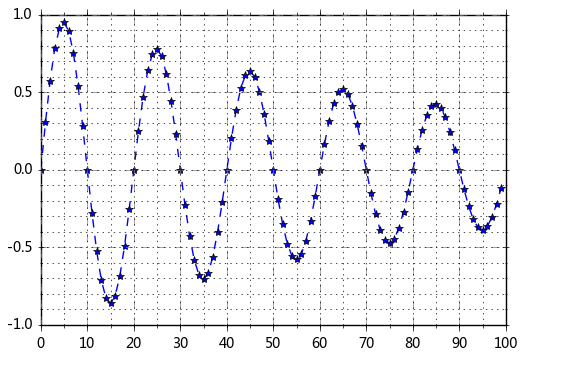
s = np.sin(0.1*np.pi*t)*np.exp(-t*0.01)
ax = plt.subplot(111) #注意:一般都在ax中设置,不再plot中设置
plt.plot(t,s,'--*')
plt.grid(True, linestyle = "--",color = "gray", linewidth = "0.5",axis = 'both')
# 网格
#plt.legend()  # 图例

xmajorLocator = MultipleLocator(10) # 将x主刻度标签设置为10的倍数
xmajorFormatter = FormatStrFormatter('%.0f') # 设置x轴标签文本的格式
xminorLocator   = MultipleLocator(5) # 将x轴次刻度标签设置为5的倍数
ymajorLocator = MultipleLocator(0.5) # 将y轴主刻度标签设置为0.5的倍数
ymajorFormatter = FormatStrFormatter('%.1f') # 设置y轴标签文本的格式
yminorLocator   = MultipleLocator(0.1) # 将此y轴次刻度标签设置为0.1的倍数

ax.xaxis.set_major_locator(xmajorLocator)  # 设置x轴主刻度
ax.xaxis.set_major_formatter(xmajorFormatter)  # 设置x轴标签文本格式
ax.xaxis.set_minor_locator(xminorLocator)  # 设置x轴次刻度

ax.yaxis.set_major_locator(ymajorLocator)  # 设置y轴主刻度
ax.yaxis.set_major_formatter(ymajorFormatter)  # 设置y轴标签文本格式
ax.yaxis.set_minor_locator(yminorLocator)  # 设置y轴次刻度

ax.xaxis.grid(True, which='both') #x坐标轴的网格使用主刻度
ax.yaxis.grid(True, which='minor') #y坐标轴的网格使用次刻度
# which:格网显示

#删除坐标轴的刻度显示
#ax.yaxis.set_major_locator(plt.NullLocator())
#ax.xaxis.set_major_formatter(plt.NullFormatter())
输出:
# 注解

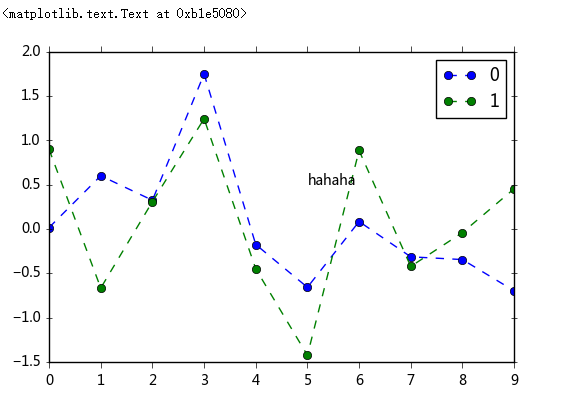
df = pd.DataFrame(np.random.randn(10,2))
df.plot(style = '--o')
plt.text(5,0.5,'hahaha',fontsize=10)
# 注解 → 横坐标,纵坐标,注解字符串
输出:
# 图表输出

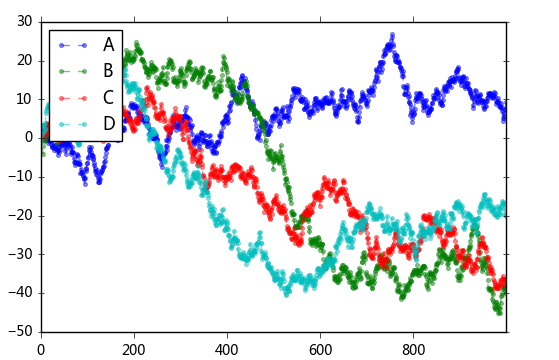
df = pd.DataFrame(np.random.randn(1000, 4), columns=list('ABCD'))
df = df.cumsum()
df.plot(style = '--.',alpha = 0.5)
plt.legend(loc = 'upper left')
plt.savefig('C:/Users/Hjx/Desktop/pic.png',
            dpi=400,
            bbox_inches = 'tight',
            facecolor = 'g',
            edgecolor = 'b')
# 可支持png,pdf,svg,ps,eps…等,以后缀名来指定
# dpi是分辨率
# bbox_inches:图表需要保存的部分。如果设置为‘tight’,则尝试剪除图表周围的空白部分。
# facecolor,edgecolor: 图像的背景色,默认为‘w’(白色)
输出:
'''
【课程3.5】  子图

在matplotlib中,整个图像为一个Figure对象
在Figure对象中可以包含一个或者多个Axes对象
每个Axes(ax)对象都是一个拥有自己坐标系统的绘图区域

plt.figure, plt.subplot

'''
# plt.figure() 绘图对象
# plt.figure(num=None, figsize=None, dpi=None, facecolor=None, edgecolor=None,
# frameon=True, FigureClass=<class 'matplotlib.figure.Figure'>, **kwargs)

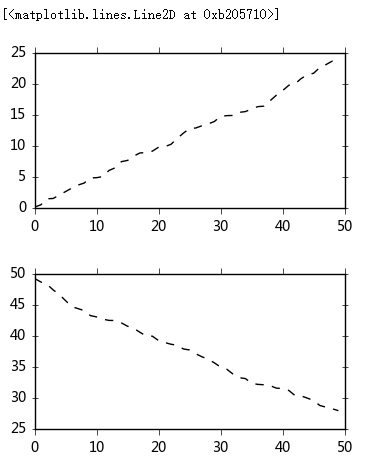
fig1 = plt.figure(num=1,figsize=(4,2))
plt.plot(np.random.rand(50).cumsum(),'k--')
fig2 = plt.figure(num=2,figsize=(4,2))
plt.plot(50-np.random.rand(50).cumsum(),'k--')
# num:图表序号,可以试试不写或都为同一个数字的情况,图表如何显示
# figsize:图表大小

# 当我们调用plot时,如果设置plt.figure(),则会自动调用figure()生成一个figure, 严格的讲,是生成subplots(111)
输出:

# 子图创建1 - 先建立子图然后填充图表

fig = plt.figure(figsize=(10,6),facecolor = 'gray')

ax1 = fig.add_subplot(2,2,1)  # 第一行的左图
plt.plot(np.random.rand(50).cumsum(),'k--')
plt.plot(np.random.randn(50).cumsum(),'b--')
# 先创建图表figure,然后生成子图,(2,2,1)代表创建2*2的矩阵表格,然后选择第一个,顺序是从左到右从上到下
# 创建子图后绘制图表,会绘制到最后一个子图

ax2 = fig.add_subplot(2,2,2)  # 第一行的右图
ax2.hist(np.random.rand(50),alpha=0.5)

ax4 = fig.add_subplot(2,2,4)  # 第二行的右图
df2 = pd.DataFrame(np.random.rand(10, 4), columns=['a', 'b', 'c', 'd'])
ax4.plot(df2,alpha=0.5,linestyle='--',marker='.')
# 也可以直接在子图后用图表创建函数直接生成图表
输出:
# 子图创建1 - 先建立子图然后填充图表

fig = plt.figure(figsize=(10,6),facecolor = 'gray')

ax1 = fig.add_subplot(2,2,1)  # 第一行的左图
plt.plot(np.random.rand(50).cumsum(),'k--')
plt.plot(np.random.randn(50).cumsum(),'b--')
# 先创建图表figure,然后生成子图,(2,2,1)代表创建2*2的矩阵表格,然后选择第一个,顺序是从左到右从上到下
# 创建子图后绘制图表,会绘制到最后一个子图

ax2 = fig.add_subplot(2,2,2)  # 第一行的右图
ax2.hist(np.random.rand(50),alpha=0.5)

ax4 = fig.add_subplot(2,2,4)  # 第二行的右图
df2 = pd.DataFrame(np.random.rand(10, 4), columns=['a', 'b', 'c', 'd'])
ax4.plot(df2,alpha=0.5,linestyle='--',marker='.')
# 也可以直接在子图后用图表创建函数直接生成图表
输出:

# 子图创建2 - 创建一个新的figure,并返回一个subplot对象的numpy数组 → plt.subplot

fig,axes = plt.subplots(2,3,figsize=(10,4))
ts = pd.Series(np.random.randn(1000).cumsum())
print(axes, axes.shape, type(axes))
# 生成图表对象的数组

ax1 = axes[0,1]
ax1.plot(ts)
输出:
[[<matplotlib.axes._subplots.AxesSubplot object at 0x000000000BB5A4A8>
  <matplotlib.axes._subplots.AxesSubplot object at 0x000000000C08B240>
  <matplotlib.axes._subplots.AxesSubplot object at 0x000000000C0D6550>]
 [<matplotlib.axes._subplots.AxesSubplot object at 0x000000000C10CDD8>
  <matplotlib.axes._subplots.AxesSubplot object at 0x000000000C15B160>
  <matplotlib.axes._subplots.AxesSubplot object at 0x000000000C190DA0>]] (2, 3) <class 'numpy.ndarray'>

# plt.subplots,参数调整

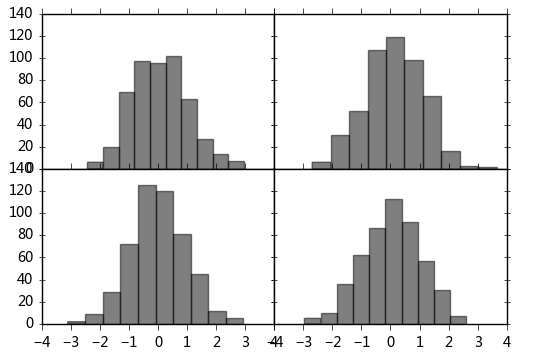
fig,axes = plt.subplots(2,2,sharex=True,sharey=True)
# sharex,sharey:是否共享x,y刻度

for i in range(2):
    for j in range(2):
        axes[i,j].hist(np.random.randn(500),color='k',alpha=0.5)
plt.subplots_adjust(wspace=0,hspace=0)
# wspace,hspace:用于控制宽度和高度的百分比,比如subplot之间的间距
输出:
# 子图创建3 - 多系列图,分别绘制

df = pd.DataFrame(np.random.randn(1000, 4), index=ts.index, columns=list('ABCD'))
df = df.cumsum()
df.plot(style = '--.',alpha = 0.4,grid = True,figsize = (8,8),
       subplots = True,
       layout = (2,3),
       sharex = False)
plt.subplots_adjust(wspace=0,hspace=0.2)
# plt.plot()基本图表绘制函数 → subplots,是否分别绘制系列(子图)
# layout:绘制子图矩阵,按顺序填充
输出:
