m_Orchestrate learning system---二十二、html代码如何变的容易
一、总结
一句话总结:(结构清晰之后构建页面就变得超级容易了)(多做多用一下子就熟了)
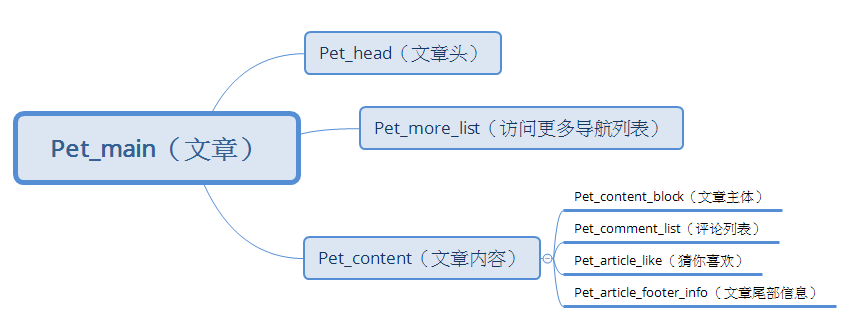
1、文章显示页的结构,结构清楚了思路就很清楚了?
结构清晰之后构建页面就变得超级容易了

pet_main包含整个文章
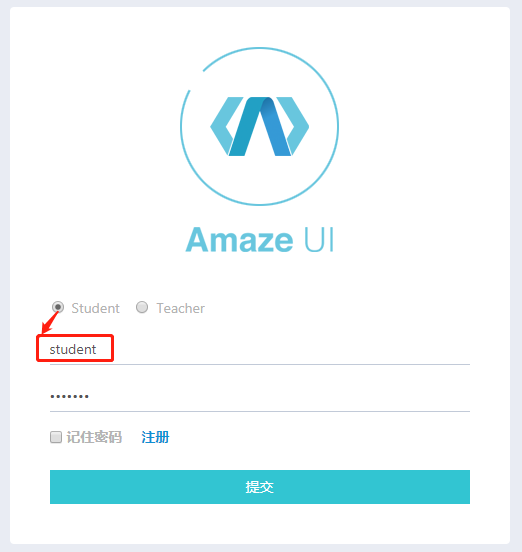
2、如何实现单选框选择不同的选项登录的账号密码自动改变?
(用的jquery的radio的change事件)
用的jquery的radio的change事件:当元素的值发生改变时,会发生 change 事件,radio选择不同选项的时候恰巧是值发生改变。

 1 <form class="am-form tpl-form-line-form" action="" method="post">
 2
 3     <div class="am-form-group">
 4         <label class="am-radio-inline tpl-login-remember-me">
 5             <input class="tpl-form-input" type="radio"  name="status" id="student" value="0" checked="checked">Student
 6         </label>
 7         <label class="am-radio-inline tpl-login-remember-me">
 8             <input class="tpl-form-input" type="radio"  name="status" id=teacher value="1" >Teacher
 9         </label>
10     </div>
11
12     <div class="am-form-group">
13         <input type="text" class="tpl-form-input" id="username" name="username" required="" value="" placeholder="username">
14
15     </div>
16
17     <div class="am-form-group">
18         <input type="password" class="tpl-form-input" id="password" name="password" required="" value="" placeholder="password">
19
20     </div>
21
22     <!-- 验证码 -->
23     <!-- <div class="am-form-group">
24         <input type="text" class="tpl-form-input" id="user-name" name="code" placeholder="CAPTCHA">
25     </div>
26     <div class="am-form-group">
27         <img width="100%" style="cursor: pointer" src="{:captcha_src()}" alt="captcha" onclick="this.src='{:captcha_src()}?'+Math.random();" />
28     </div> -->
29     <!--End 验证码 -->
30
31
32     <div class="am-form-group tpl-login-remember-me">
33         <input id="remember-me" type="checkbox">
34         <label for="remember-me">
35
36             记住密码
37         </label>
38         <label style="margin-left: 15px">
39             <a href="{:url('login/register')}">  注册</a>
40         </label>
41
42     </div>
43
44     <div class="am-form-group">
45
46         <button type="submit" class="am-btn am-btn-primary  am-btn-block tpl-btn-bg-color-success  tpl-login-btn">提交</button>
47
48     </div>
49 </form>
js
 1 <script>
 2     $(document).ready(function() {
 3         $('input[type=radio][name=status]').change(function() {
 4             if (this.value == '0') {
 5                 $("#username").val("student");
 6                 $("#password").val("student");
 7             }
 8             else if (this.value == '1') {
 9                 $("#username").val("teacher");
10                 $("#password").val("teacher");
11             }
12         });
13     });
14 </script>
3、css样式如何来写结构才能清晰?
css样式(结构非常清晰:够用就用,不够用就加)
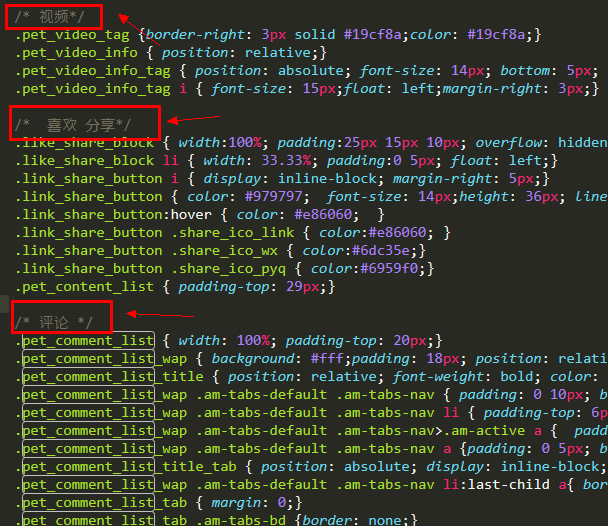
css样式是按照板块来写的,结构非常清晰
够用就用,不够用就加
4、一些东西左靠后者右靠用的是float还是position?
当然是float
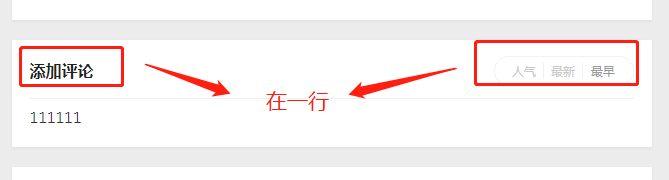
float相关设置(一般的都是父亲是相对定位,儿子是绝对定位)
 1 <!-- 添加评论板块 -->
 2 <div class="add_comment pet_comment_list">
 3   <div class="pet_comment_list_wap">
 4     <div class="pet_comment_list_title">添加评论</div>
 5     <div data-am-widget="tabs" class="am-tabs am-tabs-default pet_comment_list_tab">
 6       <ul class="am-tabs-nav am-cf pet_comment_list_title_tab">
 7         <li class="am-active"><a href="#">人气</a></li>
 8         <li class=""><a href="#">最新</a></li>
 9         <li class=""><a href="#">最早</a></li>
10       </ul>
11     </div>
12     111111
13
14   </div>
15 </div>
16 <!--End 添加评论板块 -->
父亲是相对定位,父亲相对他原来在文本流中的位置进行定位
儿子是绝对定位,相对于父亲的位置进行绝对定位
一般的都是父亲是相对定位,儿子是绝对定位
 1 /* 评论 */
 2 .pet_comment_list {  100%; padding-top: 20px;}
 3 .pet_comment_list_wap { background: #fff;padding: 18px; position: relative;    box-shadow: 0 1px 2px rgba(0,0,0,0.05);}
 4 .pet_comment_list_title { position: relative; font-weight: bold; color: #222; font-size: 16px;  100%; border-bottom: 1px solid #f1f1f1; padding-bottom: 15px; margin-bottom: 5px;}
 5 .pet_comment_list_wap .am-tabs-default .am-tabs-nav { padding: 0 10px; background: none; border-radius: 20px;   140px; height: 30px; border: 1px solid #f1f1f1;}
 6 .pet_comment_list_wap .am-tabs-default .am-tabs-nav li { padding-top: 6px;}
 7 .pet_comment_list_wap .am-tabs-default .am-tabs-nav>.am-active a {  padding: 0 5px; background: none; color: #979797;height: 16px; line-height: 16px; font-size: 12px;}
 8 .pet_comment_list_wap .am-tabs-default .am-tabs-nav a {padding: 0 5px; border-right: 1px solid #f1f1f1; background: none;color: #cacaca;height: 16px; line-height: 16px;font-size: 12px;}
 9 .pet_comment_list_title_tab { position: absolute; display: inline-block; float: right; right: 18px; top: 16px;}
10 .pet_comment_list_wap .am-tabs-default .am-tabs-nav li:last-child a{ border: none; }
11 .pet_comment_list_tab { margin: 0;}
12 .pet_comment_list_tab .am-tabs-bd {border: none;}
13 .pet_comment_list_tab .am-tab-panel { padding: 0; }
14 .pet_comment_list_block {  100%; padding: 15px 0; border-bottom: 1px solid #f1f1f1; overflow: hidden;}
15 .pet_comment_list_block_l {  50px; height: 50px; float: left; position: relative; border-radius: 50%; overflow: hidden;}
16 .pet_comment_list_block_l img {  100%;}
17 .pet_comment_list_block_r {position: relative; margin-left: 65px;}
18 .pet_comment_list_block_r_info { color: #222; font-size: 18px;}
19 .pet_comment_list_block_r_text { color: #222; font-size: 14px;}
20 .pet_comment_list_block_r_text span { color:#ff5656; padding-right: 5px;}
21 .pet_comment_list_block_r_bottom { font-size: 14px; color: #757575; padding-top: 5px;}
22 .pet_comment_list_bottom_info_l { position: relative; float: left;}
23 .pet_comment_list_bottom_info_r { position: relative; text-align: right;}
24 .pet_comment_list_bottom_info_r span { display: inline-block;  padding-right: 8px; padding-left: 3px;  }
25 .pet_pl_list .pet_comment_list_block:last-child{ border: none;}
5、thinkphp生成的url如何带参数?
善于搜索
$this->success('添加评论成功!',url('engage/article','id=6'));
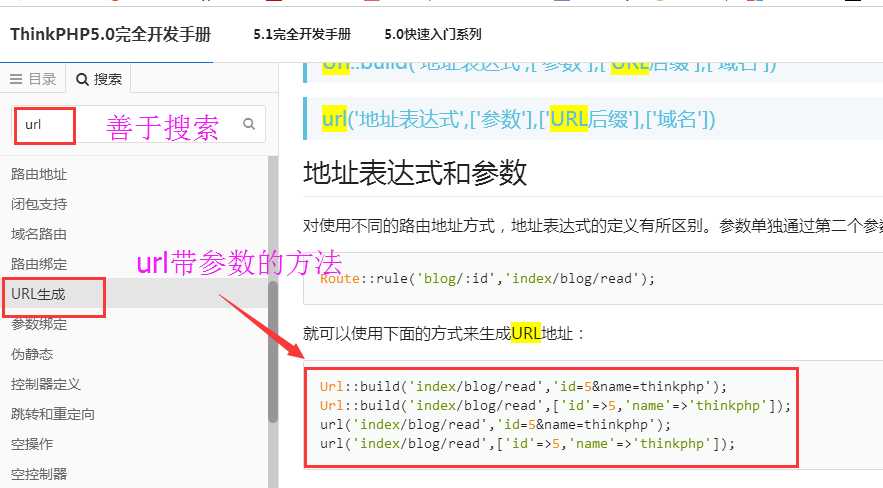
$this->success('添加评论成功!',url('engage/article',['id'=>$comment['carticleid']]));