使用 ListView 是为了向用户展示某些数据,期望用户根据这些数据做出一些反馈,比如买某个东西。而我们会经常需要访问、修改一个 ListView 展现的数据。现在我们就来看看怎么做。
一、访问数据
ListModel 的 count 属性表示 Model 中有多少条数据,int 类型。dynamicRoles 属性为布尔值,为 true 时表示 Model 中的 role 对应的值的类型可以动态改变,默认值是 false。要设置 dynamicRoles,必须在添加数据之前。不过要注意的是,一旦你使能了 dynamicRoles,ListModel 的性能会大大下降,通常它带来的性能损失是使用静态类型的 4〜6 倍。
ListModel 的get()方法接受一个 int 类型的参数,用来获取指定索引位置的数据,返回一 个 QML 对象。然后,我们就可以像访问属性那样访问数据的 role 了,正如我们在前面使用的那样:
var data = listView.model.get(listView.currentIndex}
listView.footerltem.text = data.name + " , " + data.cost + " , " + data.manufacturer
二、删除数据
如果你想删除一条或多条数据,可以使用 ListModel 的remove(int index, int count)方法,它有两个整型参数,第一个参数指明要删除的数据的索引位置,第二个参数表示要删除的数据条数,默认值为 1。
如果你想清空一个 Model,可以直接调用 clear() 方法。
现在我们将 phone_list_footer.qml 另存为 phone_list_change.qml,将 phoneDelegate 内的 MouseArea 对象修改为下面的样子:
MouseArea {
	anchors.fill: parent
    onClicked: {
		wrapper.ListView.view.currentlndex = index
	}

	onDoubleClicked: {
		wrapper.ListView.view.model.remove(index)
	}
}
然后执行 “qmlscene phone_list_change.qml” 命令,用鼠标左键双击某个 Item,该 Item 就会从 ListView 中删除。
让我们再修改一下 footer 组件,添加一个清除按钮,用来清除所有的数据。footer 组件的新代码如下:
Component {
    id: footerView
    Item{
        id: footerRootItem
         parent.width
        height: 30
        property alias text: txt.text
        signal clean()

        Text {
            anchors.left: parent.left
            anchors.top: parent.top
            anchors.bottom: parent.bottom
            id: txt
            font.italic: true
            color: "blue"
            verticalAlignment: Text.AlignVCenter
        }

        Button {
            id: clearAll
            anchors.right: parent.right
            anchors.verticalCenter: parent.verticalCenter
            text: "Clear"
            onClicked: footerRootItem.clean()
        }
    }
}
给 ListView 添加 Component.onCompleted 附加信号处理器:
Component.onCompleted: {
    listView.footerItem.clean.connect(listView.model.clear)
}
现在可以运行 phone_list_change.qml 了,看到界面右下角的 “Clear” 按钮了吧,点击它,列表所有数据就没啦。
三、修改数据
要想修改 Model 的数据,可以使用 ListModel 的setProperty(int index,string property, variant value)方法。该方法有三个参数,第一个是数据的索引,第二个是数据内 role 的名字,第三个是mle的值。比如要修改 “MI 2S" 的价格,可以这样:
listView.model.setProperty(5, "cost", 16999)
如果想替换某一条数据,可以使用set(int index, jsobject dict)方法。我们经常用对象的字面量表示法构造一个对象传递给 set() 方法。比如想把 “iPhone 3GS” 替换为 “Z5S mini”,可以这样:
listView.model.set(0, {"name" : "25S mini ", "cost" : 1999, "manufacturer" : "ZhongXing"})
四、添加数据
要向 Model 的尾部添加数据,可以使用append()方法。append() 的参数是 jsobject,在 ECMAScript 中可以使用对象的字面量表示法来构造这个 jsobject,即花括号加 key-value 对的 集合,类似于这样:{"name" : "zhangsan", "age" : 28},key-value 对之间使用逗号分隔。这种方式与 QML 对象声明的方式略有不同。给个简单的例子:
function addOne(){
    model.append(
        {
            "name": "MX3",
            "cost": "1799",
            "manufacturer": "MeiZu"
        }
    );
}
如果想在指定位置添加数据,可以使用insert()方法,它的第一个参数是整型的,代表插 入的索引位置,第二个参数是 jsobject。
再来修改下phone_list_change.qml,新增添加数据的代码,全新的内容如下:
import QtQuick 2.2
import QtQuick.Controls 1.2
import QtQuick.Layouts 1.1

Rectangle {
     360
    height: 300
    color: "#EEEEEE"

    Component {
        id: headerView
        Item {
             parent.width
            height: 30
            RowLayout {
                anchors.left: parent.left
                anchors.verticalCenter: parent.verticalCenter
                spacing: 8
                Text {
                    text: "Name"
                    font.bold: true
                    font.pixelSize: 20
                    Layout.preferredWidth: 120
                }
                // 省略。。。
            }
        }
    }

    Component {
        id: footerView
        Item{
            id: footerRootItem
             parent.width
            height: 30
            property alias text: txt.text

            // 1.自定义信号
            signal clean()
            signal add()

            Text {
                anchors.left: parent.left
                anchors.top: parent.top
                anchors.bottom: parent.bottom
                id: txt
                font.italic: true
                color: "blue"
                verticalAlignment: Text.AlignVCenter
            }

            Button {
                id: clearAll
                anchors.right: parent.right
                anchors.verticalCenter: parent.verticalCenter
                text: "Clear"
                onClicked: footerRootItem.clean()
            }

            Button {
                id: addOne
                anchors.right: clearAll.left
                anchors.rightMargin: 4
                anchors.verticalCenter: parent.verticalCenter
                text: "Add"
                onClicked: footerRootItem.add()
            }
        }
    }

    Component {
        id: phoneDelegate
        Item {
            id: wrapper
             parent.width
            height: 30

            MouseArea {
                anchors.fill: parent

                onClicked: {
                    wrapper.ListView.view.currentIndex = index
                    mouse.accepted = true
                }

                onDoubleClicked: {
                    wrapper.ListView.view.model.remove(index)
                    mouse.accepted = true
                }
            }

            RowLayout {
                anchors.left: parent.left
                anchors.verticalCenter: parent.verticalCenter
                spacing: 8

                Text {
                    id: col1
                    text: name
                    color: wrapper.ListView.isCurrentItem ? "red" : "black"
                    font.pixelSize: wrapper.ListView.isCurrentItem ? 22 : 18
                    Layout.preferredWidth: 120
                }
                // 省略。。。
            }
        }
    }

    Component {
        id: phoneModel;
        ListModel {
            ListElement{
                name: "iPhone 3GS"
                cost: "1000"
                manufacturer: "Apple"
            }
            // 省略。。。
        }
    }

    ListView {
        id: listView
        anchors.fill: parent

        delegate: phoneDelegate
        model: phoneModel.createObject(listView)
        header: headerView
        footer: footerView
        focus: true
        highlight: Rectangle{
            color: "lightblue"
        }

        onCurrentIndexChanged: {
            if( listView.currentIndex >=0 ){
                var data = listView.model.get(listView.currentIndex)
                listView.footerItem.text = data.name + " , " + data.cost + " , " + data.manufacturer
            }else{
                listView.footerItem.text = ""
            }
        }

        // 2.槽函数:添加数据
        function addOne() {
            model.append(
                        {
                            "name": "MX3",
                            "cost": "1799",
                            "manufacturer": "MeiZu"
                        }
            )
        }

        // 3.连接信号槽
        Component.onCompleted: {
            listView.footerItem.clean.connect(listView.model.clear)
            listView.footerItem.add.connect(listView.addOne)
        }
    }
}
执行 “qmlscenephone_list_change.qml" 命令后的初始效果如下图所示。
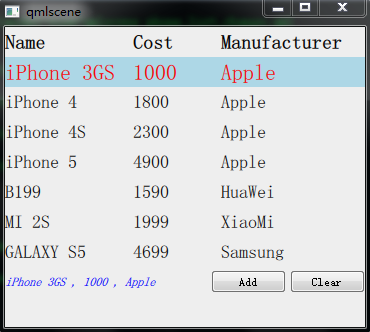
点击 "Add" 按钮后的效果如下图所示。
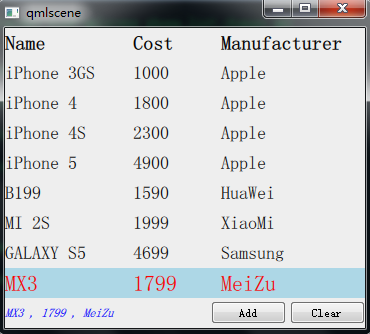
到现在为止,这个例子涵盖了 ListView 的基本应用,包括怎样初始化一个 ListView、访问数据、删除数据、动态添加数据、处理高亮等内容。你可以点击 “Clear” 按钮、点击某个 Item 或者双击某个 Item 看看效果。
五、下载链接
全部代码下载链接:https://github.com/confidentFeng/QML_Demo/tree/master/ListViewPhone
参考:
《Qt Quick核心编程》第13章