最新更新: 简单封装了一下代码,参考新文章:UICollectionView实现图片水平滚动
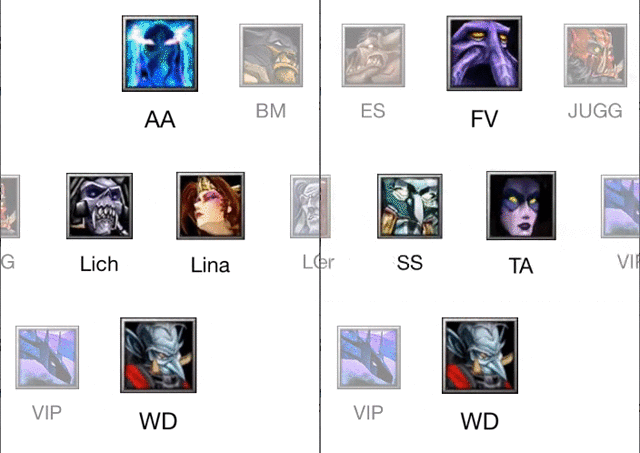
先简单看一下效果:
新博客:http://wossoneri.github.io
准备数据
首先先加入一些资源文件:
先建立一个xcassets文件,放入图片:

再建立一个plist文件,写入与图片对应的内容:
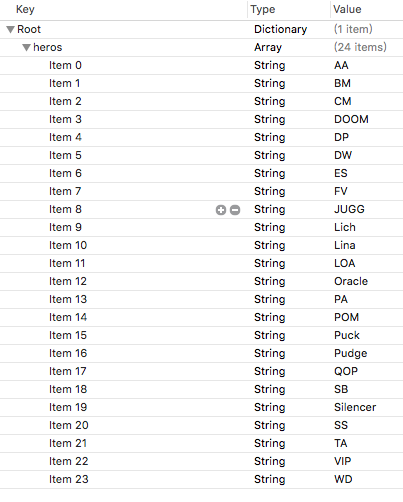
在ViewController中读取plist到词典中:
@property (nonatomic, strong) NSArray *itemTitles;

NSString *path = [[NSBundle mainBundle] pathForResource:@"titles" ofType:@"plist"];
NSDictionary *rootDictionary = [[NSDictionary alloc] initWithContentsOfFile:path];
self.itemTitles = [rootDictionary objectForKey:@"heros"];
可以打log输出,可以看到plist的内容已经读取出来,后面就可以用_itemTitle作为数据源了。
添加UICollectionView初步显示图片
每个CollectionView都有一个对应的布局layout,对于默认的的UICollectionViewFlowLayout,效果是类似Android的GridView的布局。如果要自定义CollectionView的样式,就要对这个layout进行修改。
建立自己的HorizontalFlowLayout,继承自UICollectionViewFlowLayout,然后在初始化方法里将滚动方向设置为水平:
- (instancetype) init {
    if (self = [super init]) {
        self.scrollDirection = UICollectionViewScrollDirectionHorizontal;

    }
    return self;
}
接下来定制我们的cell的显示样式,建立DotaCell,继承自UICollectionViewCell。由于我们要实现的是图片和文字的上下布局,所以增加两个属性:
@interface DotaCell : UICollectionViewCell

@property (nonatomic, strong) UIImageView *image;
@property (nonatomic, strong) UILabel *name;

@end
然后设置图片与文字上下对齐布局,这里我使用pod导入Masonry库来写自动布局:
- (instancetype)initWithFrame:(CGRect)frame {
    self = [super initWithFrame:frame];
    if (self) {
        [self initialize];
    }
    return self;
}

- (void)initialize {
    self.layer.doubleSided = NO;

    self.image = [[UIImageView alloc] init];
    self.image.backgroundColor = [UIColor clearColor];
    self.image.contentMode = UIViewContentModeCenter;
    self.image.autoresizingMask = UIViewAutoresizingFlexibleWidth | UIViewAutoresizingFlexibleHeight;

    self.name = [[UILabel alloc] init];
    self.name.font = [UIFont fontWithName:@"Helvetica Neue" size:20];
    self.name.textAlignment = NSTextAlignmentCenter;

    [self.contentView addSubview:self.image];
    [self.contentView addSubview:self.name];

    [_image mas_makeConstraints:^(MASConstraintMaker *make) {
        make.left.right.equalTo(self.contentView);
        make.top.equalTo(self.contentView).offset(30);
        make.bottom.equalTo(_name.mas_top).offset(-10);
    }];

    [_name mas_makeConstraints:^(MASConstraintMaker *make) {
        make.left.right.equalTo(self.contentView);
        make.top.equalTo(_image.mas_bottom).offset(10);
        make.bottom.equalTo(self.contentView).offset(-20);
    }];
}
写好layout和cell后就可以用这两个类来初始化我们的collectionView了:
//add in view did load
    self.layout = [[HorizontalFlowLayout alloc] init];

    CGRect rct = self.view.bounds;
    rct.size.height = 150;
    rct.origin.y = [[UIScreen mainScreen] bounds].size.height / 2.0 - rct.size.height;

    self.collectionView = [[UICollectionView alloc] initWithFrame:rct collectionViewLayout:_layout];
    self.collectionView.autoresizingMask = UIViewAutoresizingFlexibleWidth | UIViewAutoresizingFlexibleHeight;
    self.collectionView.showsHorizontalScrollIndicator = NO;
    self.collectionView.decelerationRate = UIScrollViewDecelerationRateNormal;

    [self.collectionView registerClass:[DotaCell class] forCellWithReuseIdentifier:NSStringFromClass([DotaCell class])];
    [self.collectionView setBackgroundColor:[UIColor clearColor]];
    [self.collectionView setDelegate:self];
    [self.collectionView setDataSource:self];

    [self.view addSubview:_collectionView];
添加UICollectionViewDataSource的代理方法,使其显示数据。
- (NSInteger)collectionView:(UICollectionView *)collectionView numberOfItemsInSection:(NSInteger)section {
    return [self.itemTitles count];
}

- (UICollectionViewCell *)collectionView:(UICollectionView *)collectionView cellForItemAtIndexPath:(NSIndexPath *)indexPath {
    DotaCell *cell = [collectionView dequeueReusableCellWithReuseIdentifier:NSStringFromClass([DotaCell class]) forIndexPath:indexPath];

    cell.image.image = [UIImage imageNamed:[self.itemTitles objectAtIndex:indexPath.row]];
    cell.name.text = [self.itemTitles objectAtIndex:indexPath.row];

    return cell;
}
这样程序就有了我们想要的初步效果:
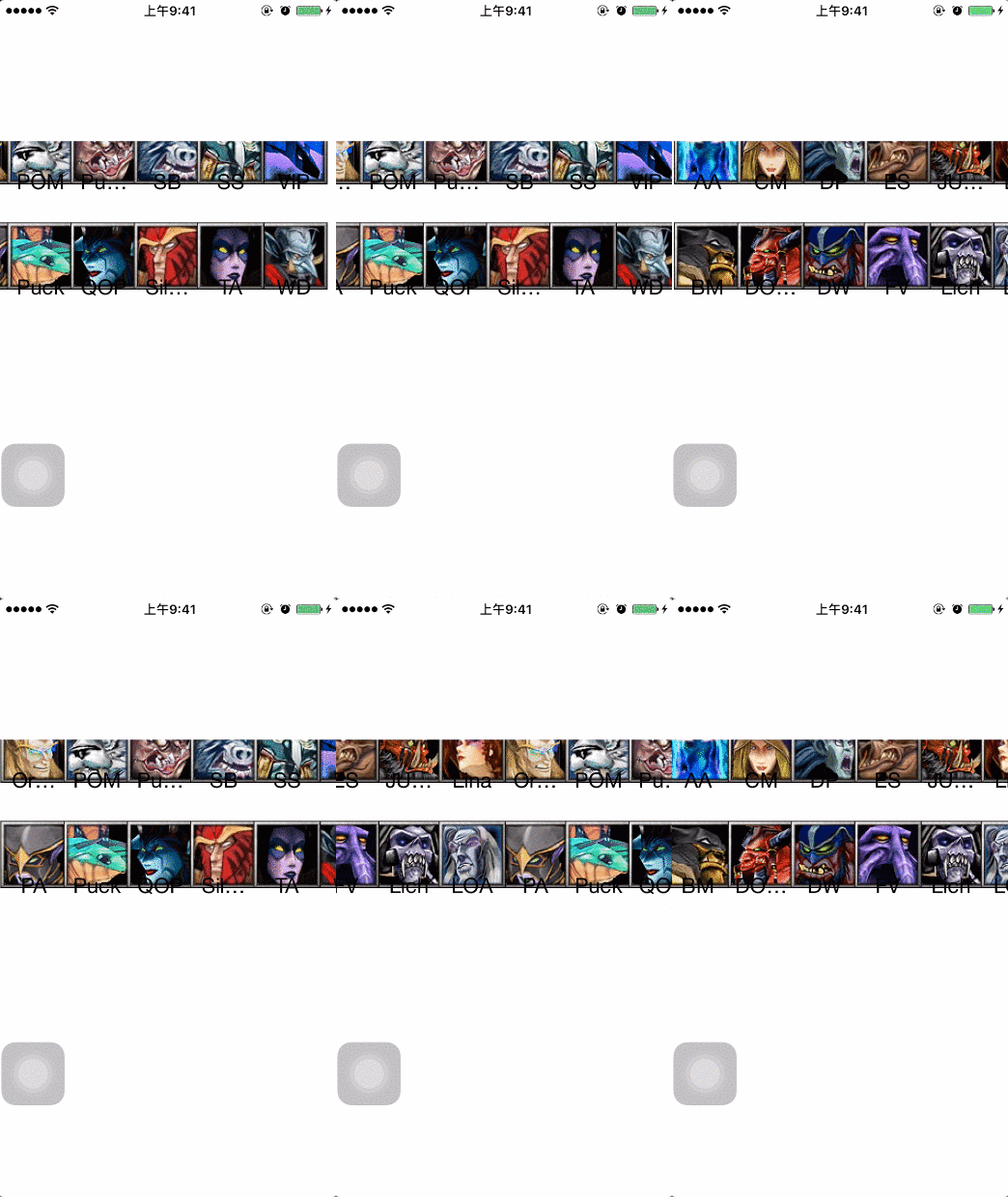
图片水平排放
但...效果的确很差!
下面要做的就是逐步完善效果,首先我们要让两排图像变成一排去展示。那要怎么去做?首先,我们在初始化collectionView的地方设置了高度为150,所以图片就挤在这个150的高度里尽可能的压缩显示。由于collectionView的尺寸已经设定,那么就剩cell的尺寸可以控制了。实现CollectionViewFlowLayoutDelegate的代理方法sizeForItemAtIndexPath:
- (CGSize)collectionView:(nonnull UICollectionView *)collectionView layout:(nonnull UICollectionViewLayout *)collectionViewLayout sizeForItemAtIndexPath:(nonnull NSIndexPath *)indexPath {
    return CGSizeMake(64, collectionView.bounds.size.height);
}
这里宽度64是图片的尺寸,高度设置填满
collectionView的高度是为了防止上图中两行图片挤压的情况,所以直接让一个cell的高度占满整个容器。
这时候的效果好了很多,已经有点样子了:
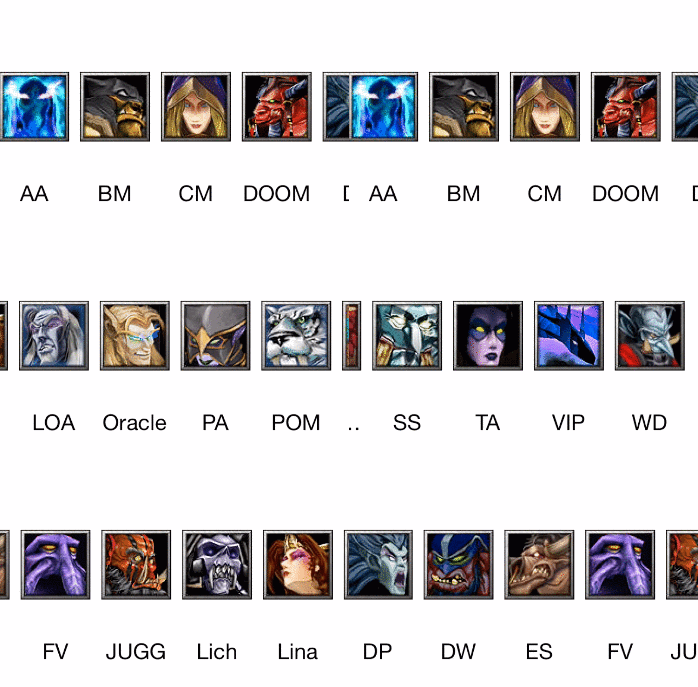
顶端图片滑到中间
但这离我们最终的效果还差很远,接下来我需要实现让第一张图片和最后一张图片都能滑到屏幕中点的位置,这应该是很常见的效果,实现起来也很简单。首先我们的一排cell都默认为顶端与collectionView的两端对齐的,collectionView的左右两端与viewController.view也是对齐的,所以显示的效果是,两端的图片都与屏幕对齐。知道这个关系就好办了,直接设置collectionView与其父view的内间距即可。
依旧是实现flowLayout的代理方法:
//Asks the delegate for the margins to apply to content in the specified section.安排初始位置
//使前后项都能居中显示
- (UIEdgeInsets)collectionView:(nonnull UICollectionView *)collectionView layout:(nonnull UICollectionViewLayout *)collectionViewLayout insetForSectionAtIndex:(NSInteger)section {

    NSInteger itemCount = [self collectionView:collectionView numberOfItemsInSection:section];

    NSIndexPath *firstIndexPath = [NSIndexPath indexPathForItem:0 inSection:section];
    CGSize firstSize = [self collectionView:collectionView layout:collectionViewLayout sizeForItemAtIndexPath:firstIndexPath];

    NSIndexPath *lastIndexPath = [NSIndexPath indexPathForItem:itemCount - 1 inSection:section];
    CGSize lastSize = [self collectionView:collectionView layout:collectionViewLayout sizeForItemAtIndexPath:lastIndexPath];

    return UIEdgeInsetsMake(0, (collectionView.bounds.size.width - firstSize.width) / 2,
                            0, (collectionView.bounds.size.width - lastSize.width) / 2);


}
效果如图:

居中图片放大显示
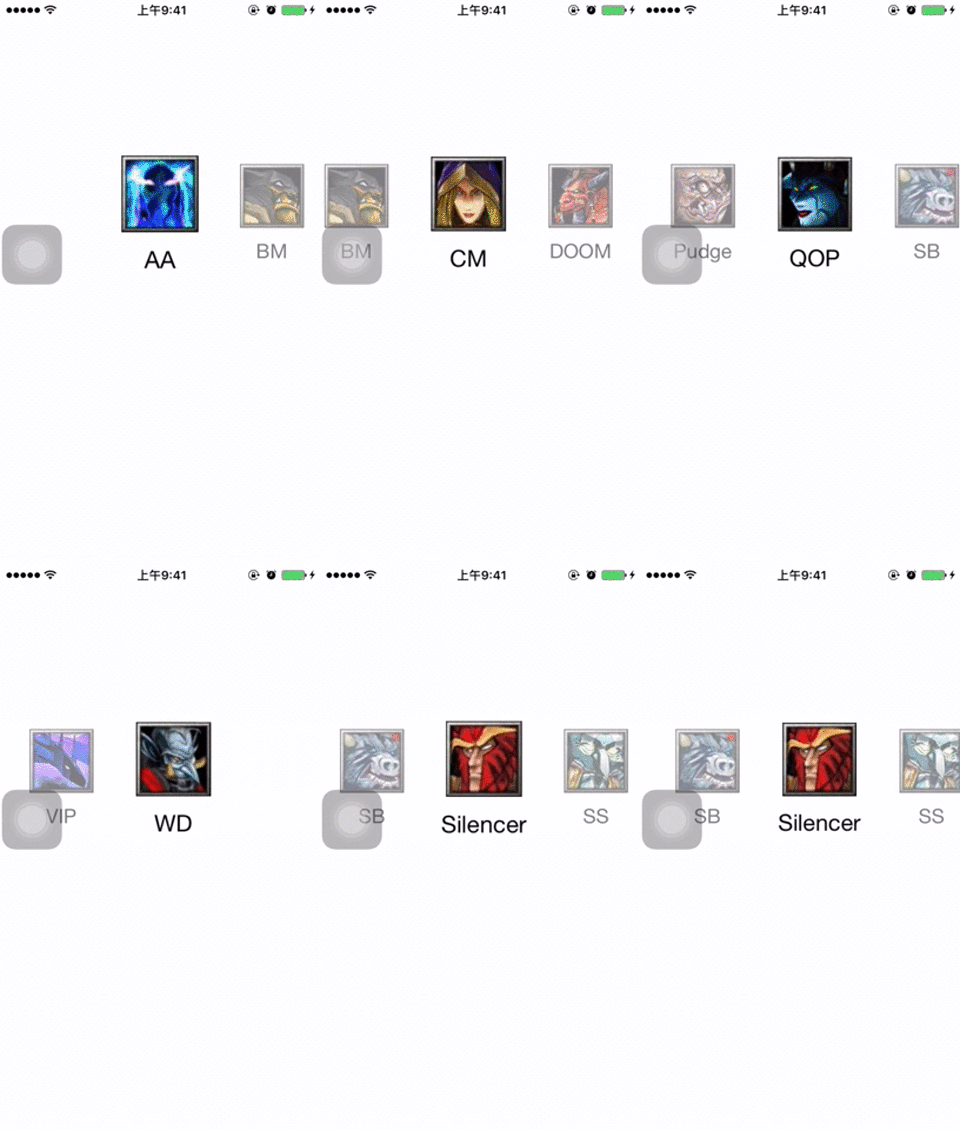
接下来添加一个我们需要的特效,就是中间的图片放大显示,其余的缩小并且增加一层半透明效果。
在FlowLayout中有一个名为layoutAttributesForElementsInRect的方法,功能如其名,就是设置范围内元素的layout属性。对于这个效果,首先需要设置放大的比例,其次要根据图片大小和间距来设定一个合适的触发放大的区域宽度,当图滑入这个区域就进行缩放。
static CGFloat const ActiveDistance = 80;
static CGFloat const ScaleFactor = 0.2;
//这里设置放大范围
- (NSArray *)layoutAttributesForElementsInRect:(CGRect)rect
{

    NSArray *array = [super layoutAttributesForElementsInRect:rect];

    CGRect visibleRect = (CGRect){self.collectionView.contentOffset, self.collectionView.bounds.size};

    for (UICollectionViewLayoutAttributes *attributes in array) {
        //如果cell在屏幕上则进行缩放
        if (CGRectIntersectsRect(attributes.frame, rect)) {

            attributes.alpha = 0.5;

            CGFloat distance = CGRectGetMidX(visibleRect) - attributes.center.x;//距离中点的距离
            CGFloat normalizedDistance = distance / ActiveDistance;

            if (ABS(distance) < ActiveDistance) {
                CGFloat zoom = 1 + ScaleFactor * (1 - ABS(normalizedDistance)); //放大渐变
                attributes.transform3D = CATransform3DMakeScale(zoom, zoom, 1.0);
                attributes.zIndex = 1;
                attributes.alpha = 1.0;
            }
        }
    }

    return array;
}
效果如下:
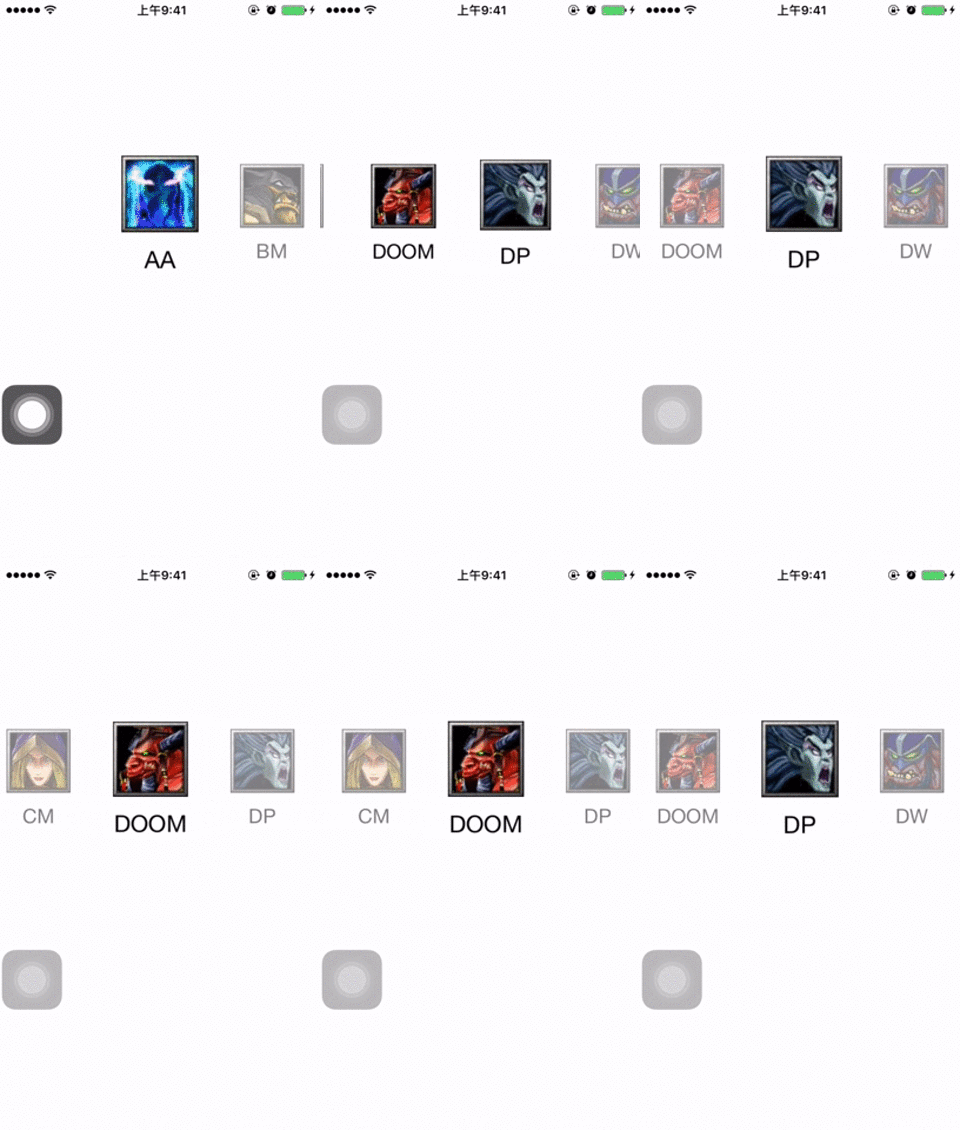
滑动校正
这时候几乎完成了,但还差点东西,就是让其在滚动停止的时候,离屏幕中间最近的cell自动矫正位置到中间。还是在FlowLayout添加该方法,具体说明我都写到注释里了:
//scroll 停止对中间位置进行偏移量校正
- (CGPoint)targetContentOffsetForProposedContentOffset:(CGPoint)proposedContentOffset withScrollingVelocity:(CGPoint)velocity {
    CGFloat offsetAdjustment = MAXFLOAT;
    ////  |-------[-------]-------|
    ////  |滑动偏移|可视区域 |剩余区域|
    //是整个collectionView在滑动偏移后的当前可见区域的中点
    CGFloat centerX = proposedContentOffset.x + (CGRectGetWidth(self.collectionView.bounds) / 2.0);
    //    CGFloat centerX = self.collectionView.center.x; //这个中点始终是屏幕中点
    //所以这里对collectionView的具体尺寸不太理解,输出的是屏幕大小,但实际上宽度肯定超出屏幕的

    CGRect targetRect = CGRectMake(proposedContentOffset.x, 0.0, self.collectionView.bounds.size.width, self.collectionView.bounds.size.height);

    NSArray *array = [super layoutAttributesForElementsInRect:targetRect];

    for (UICollectionViewLayoutAttributes *layoutAttr in array) {
        CGFloat itemCenterX = layoutAttr.center.x;

        if (ABS(itemCenterX - centerX) < ABS(offsetAdjustment)) { // 找出最小的offset 也就是最中间的item 偏移量
            offsetAdjustment = itemCenterX - centerX;
        }
    }

    return CGPointMake(proposedContentOffset.x + offsetAdjustment, proposedContentOffset.y);
}
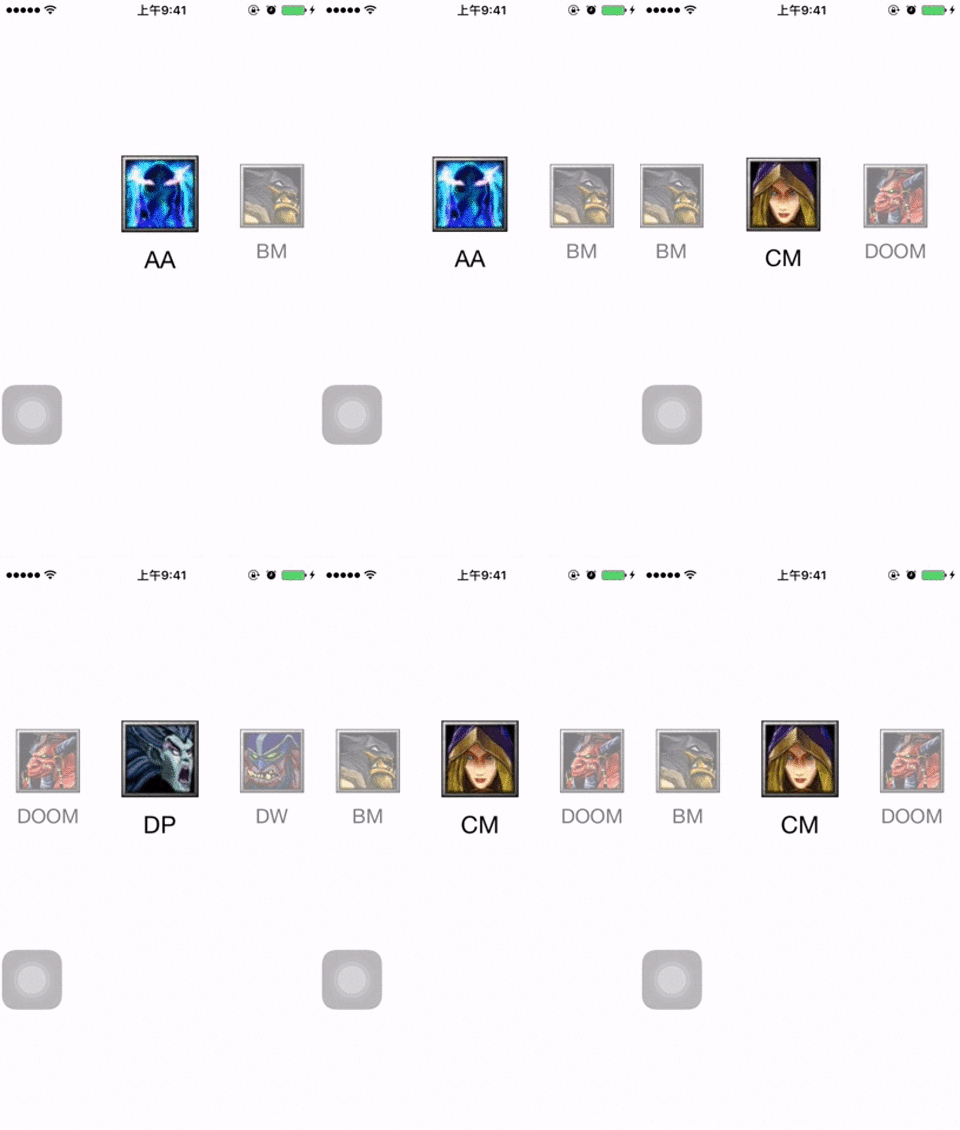
增加图片点击效果
最后 添加一个点击cell 将其滚动到中间
在viewcontroller添加CollectionViewDelegate的代理方法
- (void)collectionView:(UICollectionView *)collectionView didSelectItemAtIndexPath:(NSIndexPath *)indexPath {
    [self.collectionView selectItemAtIndexPath:indexPath animated:YES scrollPosition:UICollectionViewScrollPositionNone];

    //滚动到中间
    [self.collectionView scrollToItemAtIndexPath:indexPath atScrollPosition:UICollectionViewScrollPositionCenteredHorizontally animated:YES];
}
封装成控件
当我们把效果实现之后,就可以考虑将代码优化一下,合到一个类里,减少书写常量,增加接口,封装成一个控件去使用。比如可以设定文字的显示与隐藏接口,再比如增加适应各种尺寸的图片等等。这个代码就不放了,毕竟不难,有问题给我留言好了。