场景
用HTML和CSS和JS构建跨平台桌面应用程序的开源库Electron的介绍以及搭建HelloWorld:
https://blog.csdn.net/BADAO_LIUMANG_QIZHI/article/details/106413828
Electron怎样进行渲染进程调试和使用浏览器和VSCode进行调试:
https://blog.csdn.net/BADAO_LIUMANG_QIZHI/article/details/106414541
在上面搭建好项目以及知道怎样进行调试后,那么Electron怎样实现主进程与渲染进程之间的通信。
注:
博客:
https://blog.csdn.net/badao_liumang_qizhi
关注公众号
霸道的程序猿
获取编程相关电子书、教程推送与免费下载。
实现
ipcMain
从主进程到呈现程序进程异步通信。
ipcMain模块是EventEmitter类的一个实例。在主进程中使用时,它处理从渲染器进程(网页)发送的异步和同步消息。从渲染器发送的消息将发送到此模块。
ipcRenderer
从呈现程序进程到主进程异步通信。
ipcRenderer模块是EventEmitter类的一个实例。它提供了一些方法,因此您可以将渲染进程(网页)中的同步和异步消息发送到主进程。您还可以收到主流程的回复。
渲染进程向主进程通信,主进程收到数据并回应,渲染进程接收回应
打开主进程main.js,首先引入ipcMain
const {app, BrowserWindow,ipcMain} = require('electron')
然后通过ipcMain.on注册事件
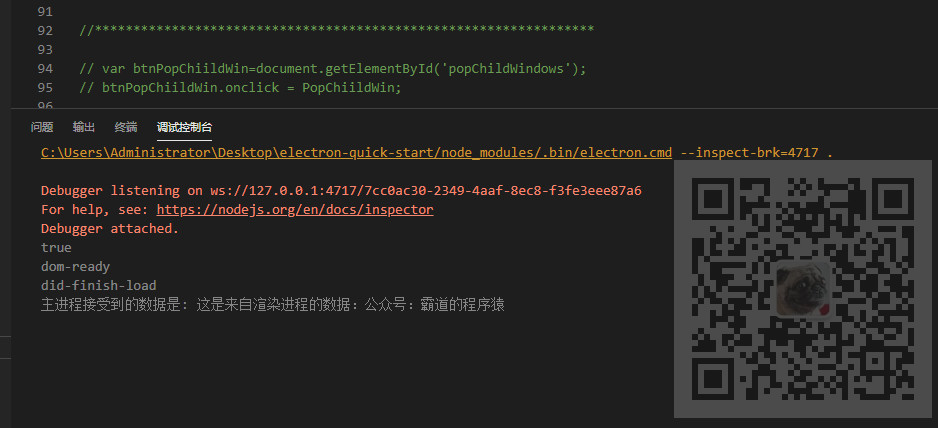
ipcMain.on("send-message-to-main",(event,args)=>{
  console.log("主进程接受到的数据是:",args);
  event.reply("send-message-to-renderer","这是来自主进程的问候");
})
第一个参数是事件名,自己定义。
然后通过args接收渲染进程传递的参数。
通过event.reply回应一个事件和数据给渲染进程。
然后打开渲染进程renderer.js,引入ipcRenderer
const {ipcRenderer} = require("electron");
然后在index.html中新建一个button并设置一个id
<div>
  <button id="sendToMain">发送信息给主进程</button>
</div>
然后在renderer.js中通过id获取button并设置点击事件
var btnSendToMain=document.getElementById('sendToMain');
btnSendToMain.onclick = SendToMain;
在点击事件中通过ipcRender.sender向主进程发送消息
function SendToMain()
{
  ipcRenderer.send("send-message-to-main","这是来自渲染进程的数据:公众号:霸道的程序猿");
}
这里发送数据时的第一个参数要与上面主进程的on里面的第一个参数一样。
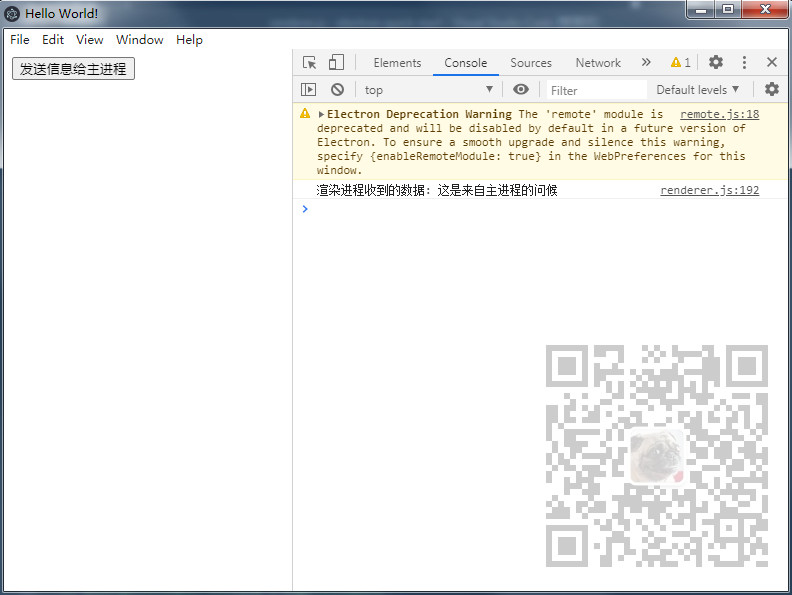
然后在renderer.js中通过ipcRenderer.on接收主进程的响应的事件和数据。
ipcRenderer.on("send-message-to-renderer",(event,args)=>{
  console.log("渲染进程收到的数据:",args);
})
其中第一个参数要与上面主进程reply里面的参数一样。
然后调试运行项目,打开调试页面。点击按钮
此时打查看主进程的控制台输出
主进程主动和渲染进程通信
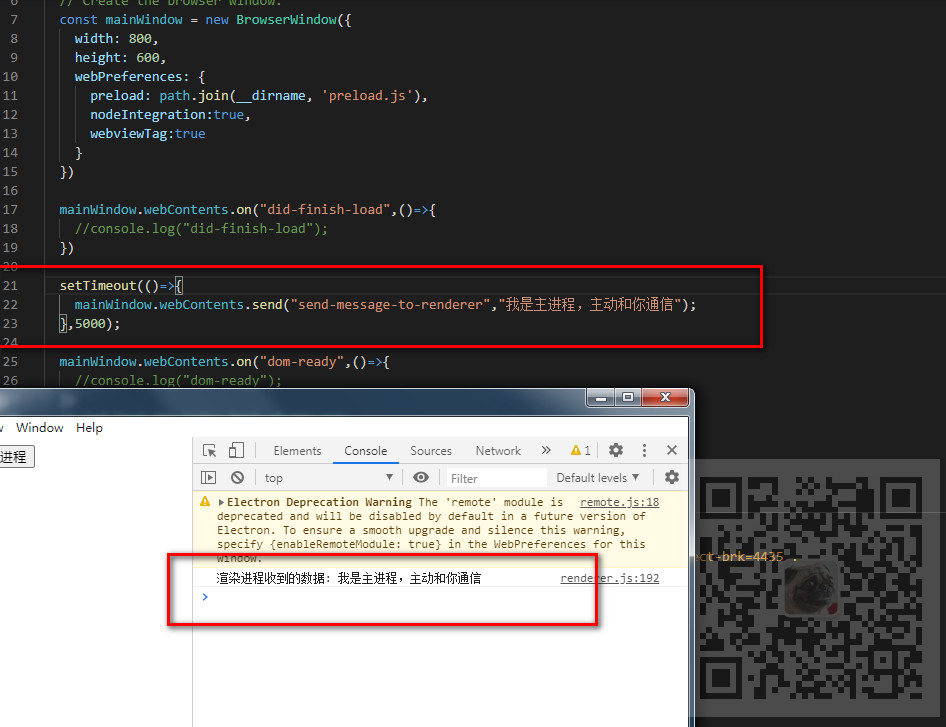
打开主进程main.js,设置一个5秒的延迟,然后通过mainWindow去实现
  setTimeout(()=>{
    mainWindow.webContents.send("send-message-to-renderer","我是主进程,主动和你通信");
  },5000);
这里的第一个参数send-message-to-renderer要与渲染进程中
ipcRenderer.on("send-message-to-renderer",(event,args)=>{
  console.log("渲染进程收到的数据:",args);
})
所绑定的事件名称相对应。
调试运行项目打开调试页面,等待5秒。