本文主要介绍vue移动端使用富文本编辑器的使用及常见问题处理。参考组件vue-html5-editor。
本例主要基于vue-cli脚手架创建。更多vue相关应用请参考:https://github.com/JerryYuanJ/a-vue-app-template
1.项目创建与初始化
创建一个vue-cli项目,建议在安装的时候不要使用ESLINT做代码检查,练习的项目不需要这种检查机制,会很浪费时间。还有一些自动化测试的插件也最好不要装,影响效率。
在安装好脚手架的依赖后,要执行 npm install vue-html5-editor -S 来安装这个富文本插件,由于这个富文本插件的图标是依赖font-awesome.css的,所以要npm install font-awesome.css 安装这个css然后在main.js中引入这个css import "font-awesome/css/font-awesome.css"。
2.使用vue-html5-editor富文本编辑器
新建一个common文件夹用于存放我们的工具类js文件,然后将下面的代码copy进去:
/**
 * author: Joker
 * creationDate: 2018/1/22
 * usage:
 */
import Vue from 'vue'
import VueHtml5Editor from 'vue-html5-editor'
export default function () {
  let opt = {
    // 全局组件名称,使用new VueHtml5Editor(options)时该选项无效
    name: "vue-html5-editor",
    // 是否显示模块名称,开启的话会在工具栏的图标后台直接显示名称
    showModuleName: true,
    // 自定义各个图标的class,默认使用的是font-awesome提供的图标
    icons: {
      text: "fa fa-pencil",
      color: "fa fa-paint-brush",
      font: "fa fa-font",
      align: "fa fa-align-justify",
      list: "fa fa-list",
      link: "fa fa-chain",
      unlink: "fa fa-chain-broken",
      tabulation: "fa fa-table",
      image: "fa fa-file-image-o",
      hr: "fa fa-minus",
      eraser: "fa fa-eraser",
      undo: "fa-undo fa",
      "full-screen": "fa fa-arrows-alt",
      info: "fa fa-info",
    },
    // 配置图片模块
    image: {
      // 文件最大体积,单位字节
      sizeLimit: 512 * 1024 * 10,
      // 上传参数,默认把图片转为base64而不上传
      // upload config,default null and convert image to base64
      upload: {
        url: null,
        headers: {},
        params: {},
        fieldName: {}
      },
      // 压缩参数,默认使用localResizeIMG进行压缩,设置为null禁止压缩
      // width和height是文件的最大宽高
      compress: {
         600,
        height: 600,
        quality: 80
      },
      // 响应数据处理,最终返回图片链接
      uploadHandler(responseText){
        //default accept json data like  {ok:false,msg:"unexpected"} or {ok:true,data:"image url"}
        var json = JSON.parse(responseText);
        console.info(json);
        if (!json.ok) {
          alert(json.msg)
        } else {
          return json.data
        }
      }
    },
    // 语言,内建的有英文(en-us)和中文(zh-cn)
    language: "zh-cn",
    // 自定义语言
    i18n: {
      "zh-cn": {
        "align": "对齐方式",
        "image": "图片",
        "list": "列表",
        "link": "链接",
        "unlink": "去除链接",
        "table": "表格",
        "font": "文字",
        "full screen": "全屏",
        "text": "排版",
        "eraser": "格式清除",
        "info": "关于",
        "color": "颜色",
        "please enter a url": "请输入地址",
        "create link": "创建链接",
        "bold": "加粗",
        "italic": "倾斜",
        "underline": "下划线",
        "strike through": "删除线",
        "subscript": "上标",
        "superscript": "下标",
        "heading": "标题",
        "font name": "字体",
        "font size": "文字大小",
        "left justify": "左对齐",
        "center justify": "居中",
        "right justify": "右对齐",
        "ordered list": "有序列表",
        "unordered list": "无序列表",
        "fore color": "前景色",
        "background color": "背景色",
        "row count": "行数",
        "column count": "列数",
        "save": "确定",
        "upload": "上传",
        "progress": "进度",
        "unknown": "未知",
        "please wait": "请稍等",
        "error": "错误",
        "abort": "中断",
        "reset": "重置"
      }
    },
    // 隐藏不想要显示出来的模块
    hiddenModules: [],
    // 自定义要显示的模块,并控制顺序
    visibleModules: [
      "text",
      "color",
      "font",
      "align",
      "list",
      "link",
      "unlink",
      "tabulation",
      "image",
      "hr",
      "eraser",
      "undo",
      "full-screen",
      "info",
    ],
    // 扩展模块,具体可以参考examples或查看源码
    // extended modules
    modules: {
      //omit,reference to source code of build-in modules
    }
  };
  Vue.use(VueHtml5Editor, opt);
}
接着在main.js中引入这个初始化的函数:
import initRichText from './common/initHTMLEditor';
initRichText();
准备工作已经完成了,我们可以使用这个组件了:
    <template>
      <div class="content">
        <vue-html5-editor :content="content" :height="400"
                          @change="updateData"></vue-html5-editor>

      </div>
    </template>
    <style scoped>

    </style>
    <script>
      export default {
        data(){
          return {content: '请输入文章内容'}
        },
        methods: {
          updateData(e = ''){
            this.content = e;
            console.info(e);
          }
        }
      }
    </script>
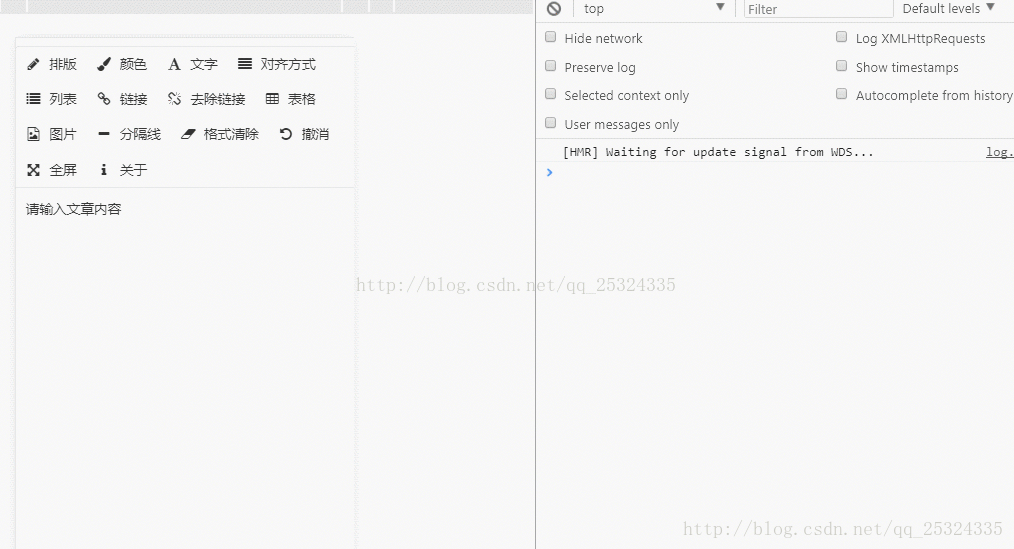
这个height属性是设置内容区的高度,content是内容区的数据内容,@change事件是内容区的监听事件,会在发生变化时触发,该函数接收一个参数,表示当前编辑器中的内容。运行结果如下(这里对图片的操作是转成base64的字符串):
3.常见问题解决
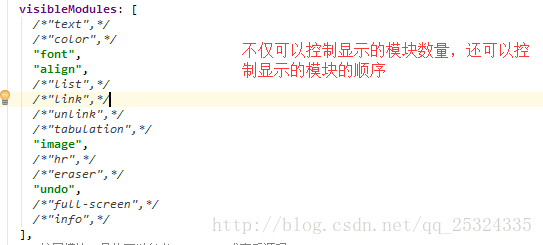
a.自定义工具栏的模块
如果不想要显示这么多的工具,则只要配置visibleModules即可:
b.工具栏的样式修改
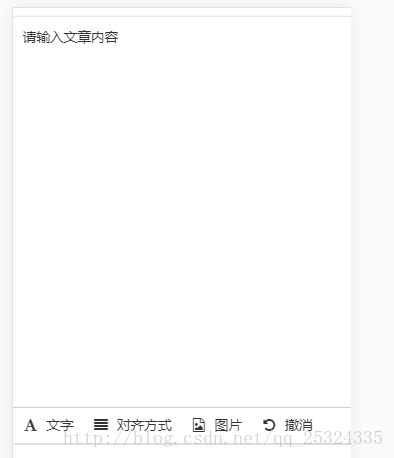
在移动端我们通常希望工具栏可以固定不动,并且显示在页面最下方,这时候我们要修改该组件的核心js里面的样式代码:
主要是将
var template$9 = "<div class="vue-html5-editor" :class="{'full-screen':fullScreen}".......省略很长的代码....) 和
__$styleInject(`.vue-html5-editor,.vue-html5-editor *{box-sizing:border-box}.....省略很长的代码......) 分别用下面两个代替:
1.组件的字符串模板
    var  temlate$9=`
     <div class="vue-html5-editor" :class="{'full-screen':fullScreen}" :style="{'z-index':zIndex}">

         <div class="content" ref="content" :style="contentStyle" contenteditable
              @click="toggleDashboard(dashboard)"></div>

         <div class="toolbar" :style="{'z-index':zIndex+1}" ref="toolbar">
           <ul>
             <template v-for="module in modules">
               <li :title="locale[module.i18n]" @click="activeModule(module)"><span class="icon"
                                                                                    :class="module.icon"></span>
                 <template v-if="showModuleName === undefined ? defaultShowModuleName : showModuleName">
                    {{locale[module.i18n]}}
                 </template>
               </li>
             </template>
           </ul>
           <div class="dashboard" v-show="dashboard" ref="dashboard">
             <keep-alive>
               <div v-show="dashboard" :is="dashboard"></div>
             </keep-alive>
           </div>
         </div>

       </div>
     `
和 2.主要的样式字符串
 `
  .vue-html5-editor, .vue-html5-editor * {
    box-sizing: border-box
  }

  .vue-html5-editor {
    font-size: 14px;
    line-height: 1.5;
    background-color: #fff;
    color: #333;
    border: 1px solid #ddd;
    text-align: left;
    border-radius: 5px;
    overflow: hidden
  }

  .vue-html5-editor.full-screen {
    position: fixed !important;
    top: 0 !important;
    left: 0 !important;
    bottom: 0 !important;
    right: 0 !important;
    border-radius: 0
  }

  .vue-html5-editor > .toolbar {
    position: relative;
    background-color: inherit;
    border-top:1px solid #ccc
  }

  .vue-html5-editor > .toolbar > ul {
    list-style: none;
    padding: 0;
    margin: 0;
    border-bottom: 1px solid #ddd
  }

  .vue-html5-editor > .toolbar > ul > li {
    display: inline-block;
    cursor: pointer;
    text-align: center;
    line-height: 36px;
    padding: 0 10px
  }

  .vue-html5-editor > .toolbar > ul > li .icon {
    height: 16px;
     16px;
    display: inline-block;
    vertical-align: middle
  }

  .vue-html5-editor > .toolbar > .dashboard {
    background-color: inherit;
    border-top: 1px solid #ddd;
    padding: 10px;
    position: absolute;
    bottom: 100%;
    left: 0;
    right: 0;
    overflow: auto
  }

  .vue-html5-editor > .toolbar > .dashboard input[type=text], .vue-html5-editor > .toolbar > .dashboard input[type=number], .vue-html5-editor > .toolbar > .dashboard select {
    padding: 6px 12px;
    color: inherit;
    background-color: transparent;
    border: 1px solid #ddd;
    border-radius: 5px
  }

  .vue-html5-editor > .toolbar > .dashboard input[type=text]:hover, .vue-html5-editor > .toolbar > .dashboard input[type=number]:hover, .vue-html5-editor > .toolbar > .dashboard select:hover {
    border-color: #bebebe
  }

  .vue-html5-editor > .toolbar > .dashboard input[type=text][disabled], .vue-html5-editor > .toolbar > .dashboard input[type=text][readonly], .vue-html5-editor > .toolbar > .dashboard input[type=number][disabled], .vue-html5-editor > .toolbar > .dashboard input[type=number][readonly], .vue-html5-editor > .toolbar > .dashboard select[disabled], .vue-html5-editor > .toolbar > .dashboard select[readonly] {
    background-color: #eee;
    opacity: 1
  }

  .vue-html5-editor > .toolbar > .dashboard input[type=text][disabled], .vue-html5-editor > .toolbar > .dashboard input[type=number][disabled], .vue-html5-editor > .toolbar > .dashboard select[disabled] {
    cursor: not-allowed
  }

  .vue-html5-editor > .toolbar > .dashboard button {
    color: inherit;
    background-color: inherit;
    padding: 6px 12px;
    white-space: nowrap;
    vertical-align: middle;
    cursor: pointer;
    -webkit-user-select: none;
    -moz-user-select: none;
    -ms-user-select: none;
    user-select: none;
    border: 1px solid #ddd;
    border-radius: 5px;
    margin-right: 4px;
    margin-bottom: 4px
  }

  .vue-html5-editor > .toolbar > .dashboard button:hover {
    border-color: #bebebe
  }

  .vue-html5-editor > .toolbar > .dashboard button[disabled] {
    cursor: not-allowed;
    opacity: .68
  }

  .vue-html5-editor > .toolbar > .dashboard button:last-child {
    margin-right: 0
  }

  .vue-html5-editor > .toolbar > .dashboard label {
    font-weight: bolder
  }

  .vue-html5-editor > .content {
    overflow: scroll;
    padding: 10px;
    max-height:500px
  }

  .vue-html5-editor > .content:focus {
    outline: 0
  }`
修改的地方不多,请参照具体的样式自己配置自定义的模板。
我这个修改完以后显示如下。而且输入很长的数据后,只是内容区变成上下滚动的,工具栏不动。
c.移动端图片上传的处理
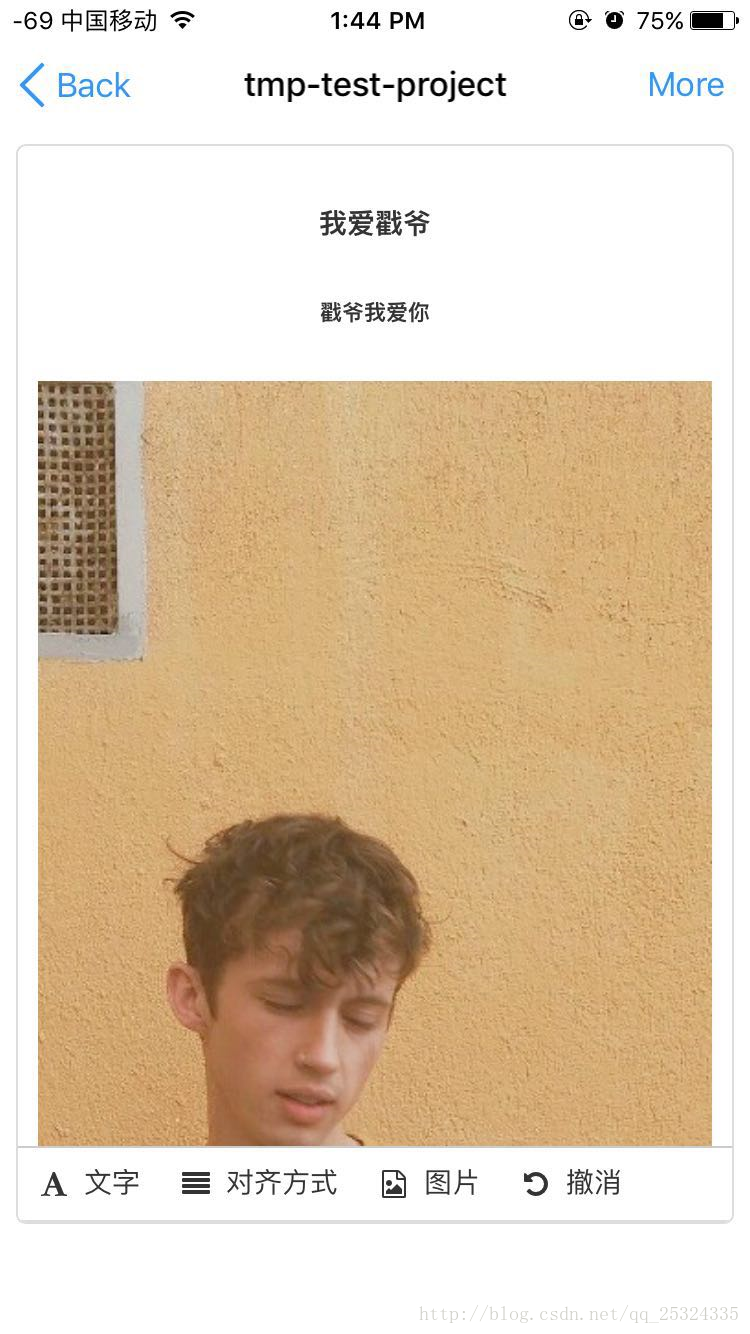
这里我没有配置服务端的上传文件的接口,所以我就直接将图片转成base64的来处理。但是这样会有问题,在PC端图片是可以修改大小的,但是在移动端上传的图片上是原图,也就是很大,图文混排的时候非常不好看,也不好编辑。这时候我做的处理挺投机取巧的,但是也是可行的方法。我们知道change函数是在内容发生变化时触发的,这时候我们只要将获取到的内容做一下修改即可,看代码:
    updateData(e = ''){
       let c1 = e.replace(/<img width="100%"/g, '<img');
       let c2 = c1.replace(/<img/g, '<img width="100%"');
       this.content = c2;
     }
这样就OK了。
看移动端的效果图:图片是按宽100%自适应缩放的。效果达到。
本项目的git地址:https://github.com/JerryYuanJ/a-vue-app-template
主要参考 /src/pages/tool/RichTextTest.vue (使用),/src/init-plugins.js(配置)
如果有bug欢迎指正,不胜感激;如果对您有帮助,给个star,谢谢~~