做了一个web的打包程序,和大家分享一下。
第一步:新建——文件——项目,弹出对话框

如图,选择安装和部署——安装项目
这里要解释一下了,一般来说,制作web安装程序选择web安装项目,而我没有选择web安装项目的原因是web安装项目制作出来的安装包是不可以选择软件的安装路径的,而安装项目制作出来的安装包是可以选择软件的安装目录的。
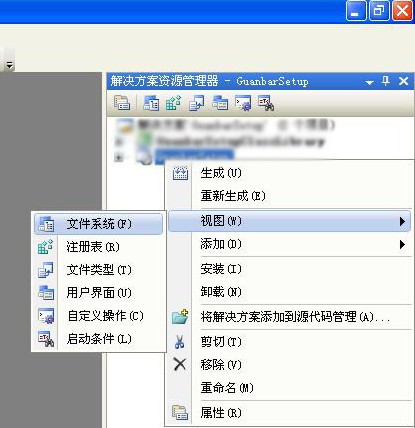
第二步:右键解决方案中的安装项目——视图——文件系统
如图
弹出
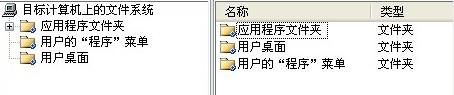



这样的文件系统界面,将你发布完的文件复制到应用程序文件夹下
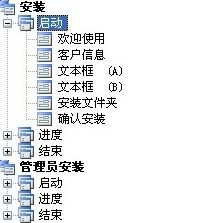
第三步:右键解决方案中的安装项目——视图——用户界面(和第二步一样,不截图了)弹出下图
其中客户信息根据项目需求可有可无,文本框(A)文本框(B)要是配置数据库连接和虚拟路径的朋友们还是要加的,移动到安装文件夹之上。
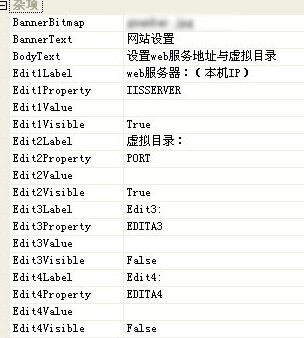
第四步:右键文本框(A)——属性窗口,如图
解释一下,Edit1Property和Edit2Property是自定义的,朋友们可以随便写,但是要有意义并且能记住,等会儿会用的。
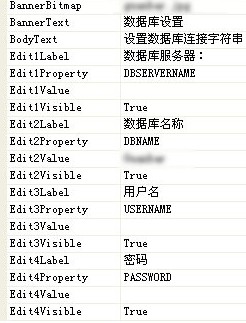
第五步:右键文本框(B)——属性窗口,如图
在解释,Edit1Property,Edit2Property,Edit3Property,Edit4Property均同上,唯一解释的是Edit2Value中填写的值是默认值,朋友们根据个人情况选填。
第六步:右键解决方案——添加——新建项目——类库,删除Class1.CS文件。在这个类库上右键——添加——新建项
如图,选择安装程序类
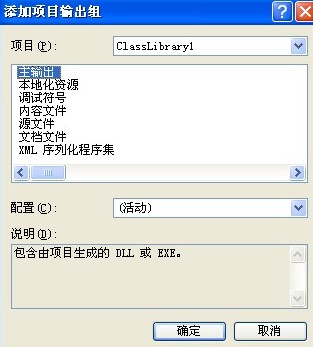
第七步:右键解决方案中的安装项目——添加——项目输出,如下图
下拉框中就是你刚才建的类库名称,选择主输出——确定。
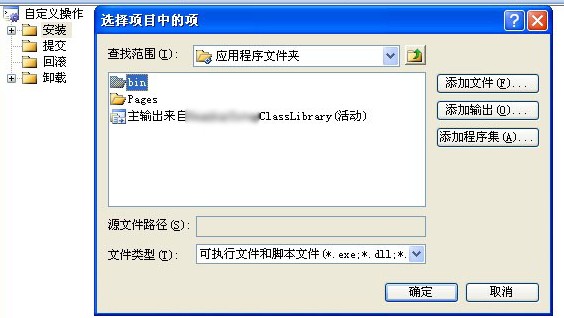
第八步:右键解决方案中的安装项目——视图——自定义操作,如下图
右键安装——添加自定义操作,选择应用程序文件夹下面的主输出——确定。
这时在安装文件夹下面就多了一个主输出,点击一下,属性如下图
图片可能看不清楚,主要只改一个属性,CustomActionData
这个值很重要
/dbname=[DBNAME] /password=[PASSWORD] /user=[USERNAME] /server=[DBSERVERNAME] /iis=[IISSERVER] /port=[PORT] /targetdir="[TARGETDIR]/"
这么重要就解释一下,小写的字母全是你建的那个安装程序类中要用到的字段,这个属性主要就是传值用的,将安装信息通过这个属性传入给安装程序类,大写的字母就是当时文本框(A)文本框(B)中你自定义的那些值,targetdir是获得软件的安装目录用的。
到这里,基本上就没有安装项目什么事了,接下来重点在安装程序类。
首先:准备工作,我所用到的引用
以下是这个类的所有代码
using System;
using System.IO;
using System.DirectoryServices;
using System.Reflection;
using System.Data;
using System.Data.SqlClient;
using System.Configuration.Install;
using System.Management;
using System.Collections;
using Microsoft.Win32;
using System.Collections.Specialized;
using System.ComponentModel;
using System.Collections.Generic;
using System.Linq;
using System.Security.AccessControl;
using IWshRuntimeLibrary;
using System.Windows.Forms;
using System.Diagnostics;
using System.IO;
using System.DirectoryServices;
using System.Reflection;
using System.Data;
using System.Data.SqlClient;
using System.Configuration.Install;
using System.Management;
using System.Collections;
using Microsoft.Win32;
using System.Collections.Specialized;
using System.ComponentModel;
using System.Collections.Generic;
using System.Linq;
using System.Security.AccessControl;
using IWshRuntimeLibrary;
using System.Windows.Forms;
using System.Diagnostics;
namespace ***ClassLibrary
{
[RunInstaller(true)]
public partial class ***Installer : Installer
{
public ***Installer()
{
InitializeComponent();
}
{
[RunInstaller(true)]
public partial class ***Installer : Installer
{
public ***Installer()
{
InitializeComponent();
}
#region 变量
private string server = string.Empty;
private string dbname = string.Empty;
private string user = string.Empty;
private string password = string.Empty;
private string dir = string.Empty;
private string iis = string.Empty;
private string port = string.Empty;
#endregion
private string server = string.Empty;
private string dbname = string.Empty;
private string user = string.Empty;
private string password = string.Empty;
private string dir = string.Empty;
private string iis = string.Empty;
private string port = string.Empty;
#endregion
#region 创建快捷方式(这个WEB快捷方式的创建方法,就是在桌面上创建了一个url的文件)
private void CreateKJFS()
{
StreamWriter sw = new StreamWriter(System.IO.File.Open(Environment.GetFolderPath(Environment.SpecialFolder.DesktopDirectory) + "", FileMode.Create, FileAccess.Write));
sw.WriteLine("[InternetShortcut]");
sw.WriteLine("URL=http://"+iis+"/" + port);
sw.WriteLine("IconFile=" + dir.Substring(0, dir.LastIndexOf("//")) + "");
sw.WriteLine("IconIndex=0");
sw.Flush();
sw.Close();
}
#endregion
private void CreateKJFS()
{
StreamWriter sw = new StreamWriter(System.IO.File.Open(Environment.GetFolderPath(Environment.SpecialFolder.DesktopDirectory) + "", FileMode.Create, FileAccess.Write));
sw.WriteLine("[InternetShortcut]");
sw.WriteLine("URL=http://"+iis+"/" + port);
sw.WriteLine("IconFile=" + dir.Substring(0, dir.LastIndexOf("//")) + "");
sw.WriteLine("IconIndex=0");
sw.Flush();
sw.Close();
}
#endregion
#region 移动数据库(解释,为什么要移动数据库呢?主要是我的数据库文件是和发布文件一起放入了应用程序文件夹中,这样在卸载的时候就会默认卸载掉我的数据库,后果十分严重,所以,我在安装目录下创建了一个文件夹Data,根据条件移动文件,由于是代码自动创建的文件夹,所以卸载时就不会被卸载掉了)
private void MoveData()
{
if (!Directory.Exists(dir + "")) //如果不存在Data文件夹
{
Directory.CreateDirectory(dir + ""); //创建Data文件夹
Directory.Move(dir + "", dir + ""); //移动文件
Directory.Move(dir + "", dir + ""); //同上
AddDB();//附加数据库(方法在下面)
}
else //如果存在Data文件夹
{
if (System.IO.File.Exists(dir + "") && System.IO.File.Exists(dir + "")) //并且存在数据库文件
{
LeaveDB(); //分离数据库
DialogResult r1 = MessageBox.Show("您确定要用原始数据替换您的现有数据吗?替换前建议您先备份好现有数据,一旦替换,数据将无法恢复!","注意", MessageBoxButtons.YesNo, MessageBoxIcon.Hand);
int ss1 = (int)r1;
if (ss1 == 6) //如果确定替换
{
System.IO.File.Delete(dir + ""); //删除文件
System.IO.File.Delete(dir + ""); //同上
Directory.Move(dir + "", dir + ""); //移动文件
Directory.Move(dir + "", dir + ""); //同上
AddDB(); //附加数据库
}
else
{
AddDB(); //附加数据库
}
}
else //存在文件夹但是不存在文件
{
Directory.Move(dir + "", dir + "");
Directory.Move(dir + "", dir + "");
AddDB();
}
}
}
#endregion
private void MoveData()
{
if (!Directory.Exists(dir + "")) //如果不存在Data文件夹
{
Directory.CreateDirectory(dir + ""); //创建Data文件夹
Directory.Move(dir + "", dir + ""); //移动文件
Directory.Move(dir + "", dir + ""); //同上
AddDB();//附加数据库(方法在下面)
}
else //如果存在Data文件夹
{
if (System.IO.File.Exists(dir + "") && System.IO.File.Exists(dir + "")) //并且存在数据库文件
{
LeaveDB(); //分离数据库
DialogResult r1 = MessageBox.Show("您确定要用原始数据替换您的现有数据吗?替换前建议您先备份好现有数据,一旦替换,数据将无法恢复!","注意", MessageBoxButtons.YesNo, MessageBoxIcon.Hand);
int ss1 = (int)r1;
if (ss1 == 6) //如果确定替换
{
System.IO.File.Delete(dir + ""); //删除文件
System.IO.File.Delete(dir + ""); //同上
Directory.Move(dir + "", dir + ""); //移动文件
Directory.Move(dir + "", dir + ""); //同上
AddDB(); //附加数据库
}
else
{
AddDB(); //附加数据库
}
}
else //存在文件夹但是不存在文件
{
Directory.Move(dir + "", dir + "");
Directory.Move(dir + "", dir + "");
AddDB();
}
}
}
#endregion
#region 附加数据库
private void AddDB()
{
private void AddDB()
{
string connStr = string.Format("data source={0};user id={1};password={2};persist security info=false;packet size=4096", server, user, password);
string strSql = "if not exists (select * From master.dbo.sysdatabases where name='" + dbname + "') begin EXEC sp_attach_db @dbname = N'" + dbname + "'," + "@filename1 = N'" + dir + "," + "@filename2 = N'" + dir + " end";
ExecuteSql(connStr, "master", strSql);
}
#endregion
ExecuteSql(connStr, "master", strSql);
}
#endregion
#region 分离数据库
private void LeaveDB()
{
string connStr = string.Format("data source={0};user id={1};password={2};persist security info=false;packet size=4096", server, user, password);
string strSql = "EXEC sp_detach_db '数据库名称', 'true' ";
ExecuteSql(connStr, "master", strSql);
}
#endregion
private void LeaveDB()
{
string connStr = string.Format("data source={0};user id={1};password={2};persist security info=false;packet size=4096", server, user, password);
string strSql = "EXEC sp_detach_db '数据库名称', 'true' ";
ExecuteSql(connStr, "master", strSql);
}
#endregion
#region 创建虚拟目录(这段是网上copy的,不是自己做的不敢解释)
private void CreateVirtualDir()
{
try
{
string constIISWebSiteRoot = "IIS://" + iis + "/W3SVC/1/ROOT";
DirectoryEntry root = new DirectoryEntry(constIISWebSiteRoot);
DirectoryEntry newRoot = root.Children.Add(port, root.SchemaClassName);
newRoot.Properties["Path"][0] = dir;
newRoot.Properties["AppIsolated"][0] = 2; // 值 0 表示应用程序在进程内运行,值 1 表示进程外,值 2 表示进程池
newRoot.Properties["AccessScript"][0] = true; // 可执行脚本
newRoot.Invoke("AppCreate", true);
newRoot.Properties["DefaultDoc"][0] = "Default.aspx";//设置起始页
newRoot.Properties["AppFriendlyName"][0] = port; // 应用程序名
newRoot.CommitChanges();
root.CommitChanges();
private void CreateVirtualDir()
{
try
{
string constIISWebSiteRoot = "IIS://" + iis + "/W3SVC/1/ROOT";
DirectoryEntry root = new DirectoryEntry(constIISWebSiteRoot);
DirectoryEntry newRoot = root.Children.Add(port, root.SchemaClassName);
newRoot.Properties["Path"][0] = dir;
newRoot.Properties["AppIsolated"][0] = 2; // 值 0 表示应用程序在进程内运行,值 1 表示进程外,值 2 表示进程池
newRoot.Properties["AccessScript"][0] = true; // 可执行脚本
newRoot.Invoke("AppCreate", true);
newRoot.Properties["DefaultDoc"][0] = "Default.aspx";//设置起始页
newRoot.Properties["AppFriendlyName"][0] = port; // 应用程序名
newRoot.CommitChanges();
root.CommitChanges();
string fileName = Environment.GetEnvironmentVariable("windir") + @"/Microsoft.NET/Framework/v2.0.50727/aspnet_regiis.exe";
ProcessStartInfo startInfo = new ProcessStartInfo(fileName);
//处理目录路径
string path = newRoot.Path.ToUpper();
int index = path.IndexOf("W3SVC");
path = path.Remove(0, index);
//启动aspnet_iis.exe程序,刷新教本映射
startInfo.Arguments = "-s " + path;
startInfo.WindowStyle = ProcessWindowStyle.Hidden;
startInfo.UseShellExecute = false;
startInfo.CreateNoWindow = true;
startInfo.RedirectStandardOutput = true;
startInfo.RedirectStandardError = true;
Process process = new Process();
process.StartInfo = startInfo;
process.Start();
process.WaitForExit();
string errors = process.StandardError.ReadToEnd();
if (errors != string.Empty)
throw new Exception(errors);
}
catch (Exception ee)
{
MessageBox.Show("虚拟目录创建失败!您可以手动创建! " + ee.Message, "Error", MessageBoxButtons.AbortRetryIgnore, MessageBoxIcon.Error, MessageBoxDefaultButton.Button1, 0);
}
ProcessStartInfo startInfo = new ProcessStartInfo(fileName);
//处理目录路径
string path = newRoot.Path.ToUpper();
int index = path.IndexOf("W3SVC");
path = path.Remove(0, index);
//启动aspnet_iis.exe程序,刷新教本映射
startInfo.Arguments = "-s " + path;
startInfo.WindowStyle = ProcessWindowStyle.Hidden;
startInfo.UseShellExecute = false;
startInfo.CreateNoWindow = true;
startInfo.RedirectStandardOutput = true;
startInfo.RedirectStandardError = true;
Process process = new Process();
process.StartInfo = startInfo;
process.Start();
process.WaitForExit();
string errors = process.StandardError.ReadToEnd();
if (errors != string.Empty)
throw new Exception(errors);
}
catch (Exception ee)
{
MessageBox.Show("虚拟目录创建失败!您可以手动创建! " + ee.Message, "Error", MessageBoxButtons.AbortRetryIgnore, MessageBoxIcon.Error, MessageBoxDefaultButton.Button1, 0);
}
}
#endregion
#endregion
#region 修改web.config的连接数据库的字符串
private void WriteWebConfig()
{
System.IO.FileInfo FileInfo = new System.IO.FileInfo(dir + "/web.config");
if (!FileInfo.Exists) //不存在web.config文件
{
throw new InstallException("没有找到web.config配置文件!");
}
System.Xml.XmlDocument xmlDocument = new System.Xml.XmlDocument();
xmlDocument.Load(FileInfo.FullName);
private void WriteWebConfig()
{
System.IO.FileInfo FileInfo = new System.IO.FileInfo(dir + "/web.config");
if (!FileInfo.Exists) //不存在web.config文件
{
throw new InstallException("没有找到web.config配置文件!");
}
System.Xml.XmlDocument xmlDocument = new System.Xml.XmlDocument();
xmlDocument.Load(FileInfo.FullName);
bool FoundIt = false;
foreach (System.Xml.XmlNode Node in xmlDocument["configuration"]["connectionStrings"])
{
if (Node.Name == "add")
{
if (Node.Attributes.GetNamedItem("name").Value == "配置文件中name的值")
{
Node.Attributes.GetNamedItem("connectionString").Value = String.Format("Persist Security Info=False;Data Source={0};database={1};User ID={2};Password={3};Packet Size=4096;Pooling=true;Max Pool Size=100;Min Pool Size=1", server, dbname, user, password);
foreach (System.Xml.XmlNode Node in xmlDocument["configuration"]["connectionStrings"])
{
if (Node.Name == "add")
{
if (Node.Attributes.GetNamedItem("name").Value == "配置文件中name的值")
{
Node.Attributes.GetNamedItem("connectionString").Value = String.Format("Persist Security Info=False;Data Source={0};database={1};User ID={2};Password={3};Packet Size=4096;Pooling=true;Max Pool Size=100;Min Pool Size=1", server, dbname, user, password);
FoundIt = true;
}
}
}
}
if (!FoundIt)
{
throw new InstallException("修改web.config配置文件失败!");
}
xmlDocument.Save(FileInfo.FullName);
}
#endregion
}
if (!FoundIt)
{
throw new InstallException("修改web.config配置文件失败!");
}
xmlDocument.Save(FileInfo.FullName);
}
#endregion
#region 执行SQL语句所用方法
private void ExecuteSql(string connStr, string DatabaseName, string Sql)
{
SqlConnection conn = new SqlConnection(connStr);
SqlCommand cmd = new SqlCommand(Sql, conn);
private void ExecuteSql(string connStr, string DatabaseName, string Sql)
{
SqlConnection conn = new SqlConnection(connStr);
SqlCommand cmd = new SqlCommand(Sql, conn);
conn.Open();
conn.ChangeDatabase(DatabaseName);
try
{
cmd.ExecuteNonQuery();
}
finally
{
conn.Close();
}
}
#endregion
conn.ChangeDatabase(DatabaseName);
try
{
cmd.ExecuteNonQuery();
}
finally
{
conn.Close();
}
}
#endregion
#region Install 安装(安装主方法)
public override void Install(IDictionary stateSaver)
{
base.Install(stateSaver);
dir = this.Context.Parameters["targetdir"].ToString();
server = this.Context.Parameters["server"].ToString();
dbname = this.Context.Parameters["dbname"].ToString();
user = this.Context.Parameters["user"].ToString();
password = this.Context.Parameters["password"].ToString();
iis = this.Context.Parameters["iis"].ToString();
port = this.Context.Parameters["port"].ToString();
//移动数据库
MoveData();
//创建虚拟目录
CreateVirtualDir();
//重写Config
WriteWebConfig();
//创建快捷方式
CreateKJFS();
}
#endregion
}
}
public override void Install(IDictionary stateSaver)
{
base.Install(stateSaver);
dir = this.Context.Parameters["targetdir"].ToString();
server = this.Context.Parameters["server"].ToString();
dbname = this.Context.Parameters["dbname"].ToString();
user = this.Context.Parameters["user"].ToString();
password = this.Context.Parameters["password"].ToString();
iis = this.Context.Parameters["iis"].ToString();
port = this.Context.Parameters["port"].ToString();
//移动数据库
MoveData();
//创建虚拟目录
CreateVirtualDir();
//重写Config
WriteWebConfig();
//创建快捷方式
CreateKJFS();
}
#endregion
}
}