Win7终于发布了
在开启UAC的时候,在win7中执行程序默认是以一种权限较低的方式执行的,但是在这种方式下,我们有些操作会失败(比如修改注册表,监听端口,往系统目录写入文件等),要实现这些操作,就需要我们以管理员权限执行程序了。
当然,只有在程序上右键,选择“以管理员执行”就可以,不过如何让程序自己自动以管理员权限来运行呢,这就需要Manifest了。
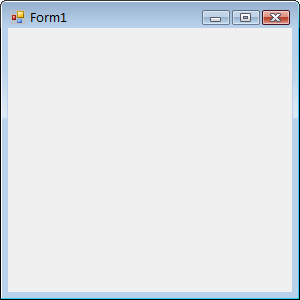
首先我们来新建个项目(懒得改名字了,就叫WindowsFormsApplication1吧)

按F5执行下(恩,貌似没有啥问题[空文档,有问题才怪 ... ])
然后我们添加Manifest(中文版叫“应用程序清单文件”)


下面我们看下Manifest的内容
<?xml version="1.0" encoding="utf-8"?>
<asmv1:assembly manifestVersion="1.0" xmlns="urn:schemas-microsoft-com:asm.v1" xmlns:asmv1="urn:schemas-microsoft-com:asm.v1" xmlns:asmv2="urn:schemas-microsoft-com:asm.v2" xmlns:xsi="http://www.w3.org/2001/XMLSchema-instance">
  <assemblyIdentity version="1.0.0.0" name="MyApplication.app"/>
  <trustInfo xmlns="urn:schemas-microsoft-com:asm.v2">
    <security>
      <requestedPrivileges xmlns="urn:schemas-microsoft-com:asm.v3">
        <!-- UAC 清单选项
            如果希望更改 Windows 用户帐户控制级别,请用以下节点之一替换
            requestedExecutionLevel 节点。
        <requestedExecutionLevel  level="asInvoker" uiAccess="false" />
        <requestedExecutionLevel  level="requireAdministrator" uiAccess="false" />
        <requestedExecutionLevel  level="highestAvailable" uiAccess="false" />

          如果您希望利用文件和注册表虚拟化提供
            向后兼容性,请删除 requestedExecutionLevel 节点。
        -->
        <requestedExecutionLevel level="asInvoker" uiAccess="false" />
      </requestedPrivileges>
    </security>
  </trustInfo>
</asmv1:assembly>
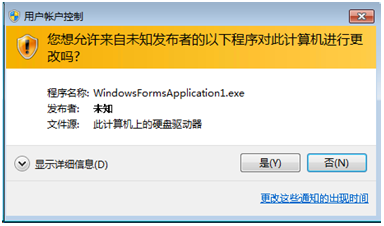
内容里的说明够详细了吧,只要把 asInvoker替换成requireAdministrator,我们的程序就会默认要求管理员权限运行了,该下执行试试效果。
恩,窗口弹出来了。
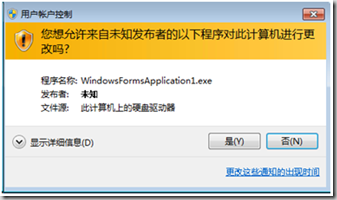
看下程序图标:
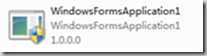

大功告成...
下面再说下怎么给程序的按钮上也加上小盾牌图标吧
这我们就需要调用Win32 API了
要调用API么,要先引用命名空间
using System.Runtime.InteropServices;
然后调用API
        [DllImport("user32.dll")]
        private static extern IntPtr SendMessage(HandleRef hWnd, uint Msg, IntPtr wParam, IntPtr lParam);

        ///////////////////////////////////////////////////////////////////////
        /// <summary>
        ///     Enables the elevated shield icon on the given button control
        /// </summary>
        /// <param name="ThisButton">
        ///     Button control to enable the elevated shield icon on.
        /// </param>
        ///////////////////////////////////////////////////////////////////////
        private void EnableElevateIcon_BCM_SETSHIELD(Button ThisButton)
        {
            // Input validation, validate that ThisControl is not null
            if (ThisButton == null)
            {
                return;
            }

            // Define BCM_SETSHIELD locally, declared originally in Commctrl.h
            uint BCM_SETSHIELD = 0x0000160C;

            // Set button style to the system style
            ThisButton.FlatStyle = FlatStyle.System;

            // Send the BCM_SETSHIELD message to the button control
            SendMessage(new HandleRef(ThisButton, ThisButton.Handle), BCM_SETSHIELD, new IntPtr(0), new IntPtr(1));
        }
在Form上拖个Button,拖大一点哦,小了图标看不清
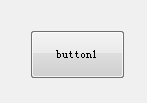
然后在Form1_Load里,用API把图标加到Button1上
        private void Form1_Load(object sender, EventArgs e)
        {
            EnableElevateIcon_BCM_SETSHIELD(button1);
        }
最后执行看下效果吧!
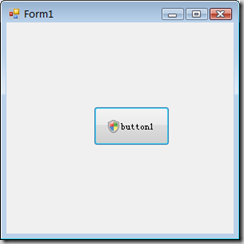
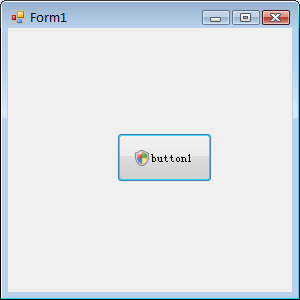
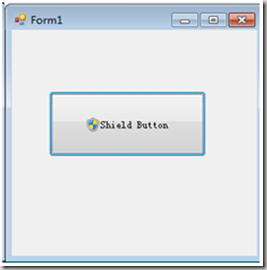
恩?盾牌为啥有点不一样呢,上面那个图标是server08上的,win7上应该是下面这样:

有错误的地方欢迎指出。