在上一篇《Chrome自带恐龙小游戏的源码研究(五)》中实现了眨眼睛的恐龙,这一篇主要研究恐龙的跳跃。
恐龙的跳跃
游戏通过敲击键盘的Spacebar或者Up来实现恐龙的跳跃。先用一张图来表示整个跳跃的过程:
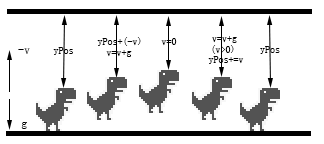
- 首先规定向下为正方向,即重力加速度(g)为正,起跳的速度(v)为负,恐龙距离画布上方的距离为yPos;
- 每一帧动画中,速度都会与重力加速度相加得到新的速度,再用新的速度与yPos相加得到新的yPos,改变恐龙的位置为新的yPos,表现出来为yPos不断减小;
- 当恐龙升至最高点,此时速度为0,并且仍具有向下的重力加速度。
- 速度仍与重力加速度相加得到新的速度,此时速度方向向下,为正值,表现为yPos逐渐增加;
- 落地,并使yPos不超过地面的高度,将速度重置为0,更新状态jumping为false。
下面通过代码来实现。首先注册键盘事件:
1 document.addEventListener('keydown',onKeyDown);
2 document.addEventListener('keyup',onKeyUp);
1         function onKeyDown(e) {
2             if(keycode.JUMP[e.keyCode]) {
3                 if(!trex.jumping) {
4                     trex.startJump(6);
5                 }
6             }
7         }
按下跳跃键后,执行startJump方法:


 1 startJump: function(speed) {
 2     if (!this.jumping) {
 3         //切换到jump状态
 4         this.update(0, Trex.status.JUMPING);
 5         //设置跳跃速度
 6         this.jumpVelocity = this.config.INIITAL_JUMP_VELOCITY - (speed / 10);
 7         this.jumping = true;
 8         this.reachedMinHeight = false;
 9     }
10 }
之后在每次GameLoop中更新状态:
1 if (trex.jumping) {
2     ctx.clearRect(0, 0, 600, 150);
3     trex.updateJump(deltaTime);
4 }
 1 updateJump: function(deltaTime) {
 2     //帧切换速率
 3     var msPerFrame = Trex.animFrames[this.status].msPerFrame;
 4     //经过的帧数
 5     var framesElapsed = deltaTime / msPerFrame;
 6     //更新y轴坐标
 7     this.yPos += Math.round(this.jumpVelocity * framesElapsed);
 8     //由于速度受重力影响,需要对速度进行修正
 9     this.jumpVelocity += this.config.GRAVITY * framesElapsed;
10
11     //达到最小跳跃高度
12     if (this.yPos < this.minJumpHeight) {
13         this.reachedMinHeight = true;
14     }
15     //达到最大高度后停止跳跃
16     if (this.yPos < this.config.MAX_JUMP_HEIGHT) {
17         this.endJump();
18     }
19     if (this.yPos > this.groundYPos) {
20         this.reset();
21         this.jumpCount++;
22     }
23     this.update(deltaTime);
24 },
25
26 update: function(deltaTime, opt_status) {
27     this.timer += deltaTime;
28
29     if (opt_status) {
30         this.status = opt_status;
31         this.currentFrame = 0;
32         //得到对应状态的帧率 e.g. WAITING 1000ms / 3fps = 333ms/fps
33         this.msPerFrame = Trex.animFrames[opt_status].msPerFrame;
34         //对应状态的动画帧 e.g. WAITING [44,0]
35         this.currentAnimFrames = Trex.animFrames[opt_status].frames;
36
37         if (opt_status === Trex.status.WAITING) {
38             //开始计时
39             this.animStartTime = getTimeStamp();
40             //设置延时
41             this.setBlinkDelay();
42         }
43     }
44
45     //计时器超过一帧的运行时间,切换到下一帧
46     if (this.timer >= this.msPerFrame) {
47         this.currentFrame = this.currentFrame === this.currentAnimFrames.length - 1 ? 0 : this.currentFrame + 1;
48         this.timer = 0;
49     }
50
51     //待机状态
52     if (this.status === Trex.status.WAITING) {
53         //执行眨眼动作
54         this.blink(getTimeStamp());
55     } else {
56         this.draw(this.currentAnimFrames[this.currentFrame], 0);
57     }
58 }
这样就实现了跳跃的过程。
轻跳
如果持续按住Spacebar或者Up不放,跳跃总是能达到最大高度的,但很多情况下我们只是轻轻敲击一下键盘然后就放手了,这时的游戏表现为恐龙只跳起一个很低的高度,然后开始下落,一般称之为“轻跳”、“小跳”。这看起来是根据按键时长来决定跳跃高度,实现起来有一定的难度,但实际情况却比较简单,只监听键盘的onkeyup事件即可。
function onKeyUp(e) {
    if (keycode.JUMP[e.keyCode]) {
        trex.endJump();
    }
}
当键盘抬起时,执行endJump方法,而endJump方法也十分简单:
endJump: function() {
    if (this.reachedMinHeight && this.jumpVelocity < this.config.DROP_VELOCITY) {
        this.jumpVelocity = this.config.DROP_VELOCITY;
    }
}
首先要判断是否达到了最小跳跃高度,this.reachedMinHeight这个变量非常有用,它避免了游戏角色只跳起数像素然后落地这样的无意义跳跃。此时如果向上的速度仍比较大的话,则强制减小为this.config.DROP_VELOCITY以便能够更快地下落。
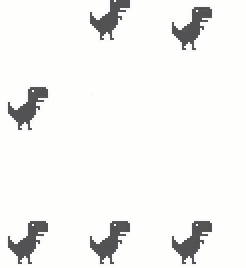
下图分别是“大跳”和“小跳”的区别:

快速落地
在跳跃过程中如果按下了Down键,恐龙会加速下降。
1 function onKeyDown(e) {
2     //......
3     if(keycode.DUCK[e.keyCode]) {//Down
4         if(trex.jumping) {
5             trex.setSpeedDrop();   //加速下降
6         }
7     }
8 }
松开键位时取消加速:
1 function onKeyUp(e) {
2     //......
3     if (keycode.DUCK[e.keyCode]) {
4         trex.speedDrop = false;
5     }
6 }
在构造函数中添加setSpeedDrop方法:
1 setSpeedDrop: function() {
2     this.speedDrop = true;
3     this.jumpVelocity = 1;    //将速度设置为1,正方向(向下为正方向)
4 }
还需要对updateJump方法做一些更新:
 1 updateJump:function (deltaTime) {
 2     //......
 3
 4     //更新y轴坐标
 5     if (this.speedDrop) {
 6         //SPEED_DROP_COEFFICIENT为加速倍数,初始设定为3
 7     this.yPos += Math.round(this.jumpVelocity *       this.config.SPEED_DROP_COEFFICIENT * framesElapsed);
 8     } else {
 9     this.yPos += Math.round(this.jumpVelocity * framesElapsed);
10     }
11
12
13     //达到最小跳跃高度
14     //speedDrop也能触发reachedMinHeight
15     if (this.yPos < this.minJumpHeight || this.speedDrop) {
16     this.reachedMinHeight = true;
17     }
18
19     //达到最大高度后停止跳跃
20     //speedDrop也能触发endJump
21     if (this.yPos < this.config.MAX_JUMP_HEIGHT || this.speedDrop)         {
22     this.endJump();
23     }
24 //......
25
26 }
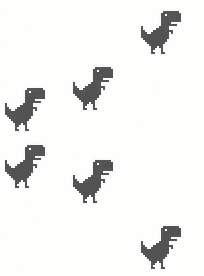
效果如下图所示,在跳跃过程中按住Down,可以发现下落速度比平时快:
闪避
在地面上按住Down键,恐龙会进入闪避状态。首先还是从keydown方法入手:
1 if (keycode.DUCK[e.keyCode]) {
2     e.preventDefault();
3     if (trex.jumping) {
4         trex.setSpeedDrop();
5     } else if (!trex.jumping && !trex.ducking) {
6         trex.setDuck(true);    //闪避
7     }
8 }
keyup方法取消闪避:
1 function onKeyUp(e) {
2     if (keycode.JUMP[e.keyCode]) {
3         trex.endJump();
4     }
5     if (keycode.DUCK[e.keyCode]) {
6         trex.speedDrop = false;
7         trex.setDuck(false);   //取消闪避
8     }
9 }
setDuck方法:
1 setDuck: function(isDucking) {
2     if (isDucking && this.status !== Trex.status.DUCKING) {
3         this.update(0, Trex.status.DUCKING);
4         this.ducking = true;
5     } else if (this.status === Trex.status.DUCKING) {
6         this.update(0, Trex.status.RUNNING);
7         this.ducking = false;
8     }
9 }
最终效果如下(Spacebar或Up跳跃;Down快速下降/闪避):
