In this tutorial, we show you how to create a simple “hello world” Android project in Eclipse IDE + ADT plugin, and run it with Android Virtual Device (AVD). The Eclipse ADT plugin provided easy Android project creation and management, components drag and drop, auto-complete and many useful features to speed up your Android development cycles.
Summary steps to develop an Android application :
- Install Android SDK
- Install ADT Eclipse plugin
- Create an Android Virtual Device (AVD)
- Create Android Project with Eclipse (Wizard)
- Code it…
- Start it in Android Virtual Device (AVD)
Tools used in this tutorial :
- JDK 1.6
- Eclipse IDE 3.7 , Indigo
- Android SDK
1. Install Android SDK
Visit this Android SDK page, choose which platform and install it.
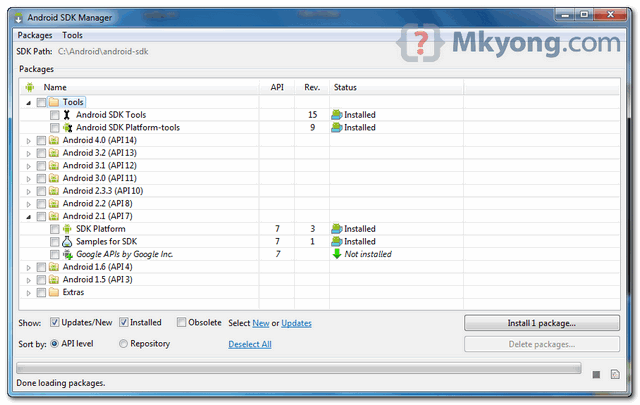
In Android SDK installed folder, run “Android SDK manager”, choose what Android version you want to develop.
2. Install ADT Eclipse plugin
To integrate Android SDK with Eclipse IDE, you need to install Eclipse ADT plugin. Refer to this official guide – “Installing the ADT Plugin“.
In Eclipse IDE, select “Help” -> Install New Software…”, and put below URL :
https://dl-ssl.google.com/android/eclipse/
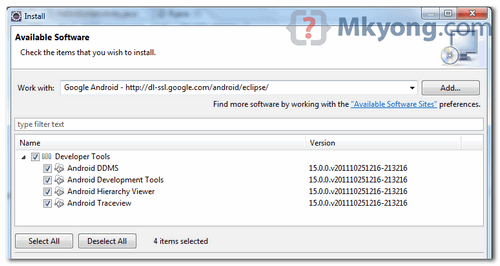
In my case, above ADT plugin is taking years to download, no idea why. If you are facing the similar problem, just download and install the ADT plugin manually, refer to this ADT plugin troubleshooting guide.
3. Create an Android Virtual Device (AVD)
In Eclipse, you can access the “Android Virtual Device (AVD)” in Eclipse toolbar. Click “new” to create a AVD.
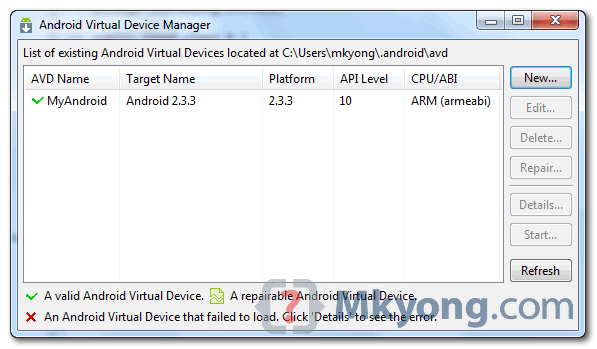
Later, Eclipse will deploy the application into this AVD.
4. Create Android Project
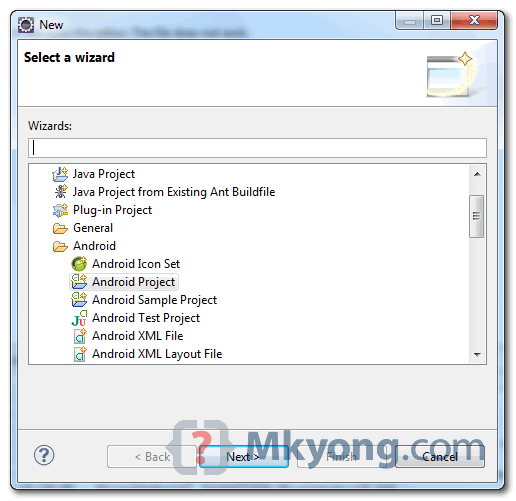
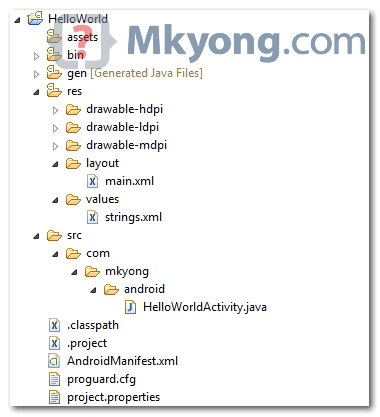
In Eclipse, select “File -> New -> Project….”, “Android Project”, and input your application detail. Eclipse will create all the necessary Android project files and configuration.
5. Hello World
Locate the generated activity file, and modify a bit to output a string “Hello World”.
File : HelloWorldActivity.java
package com.mkyong.android;

import android.app.Activity;
import android.os.Bundle;
import android.widget.TextView;

public class HelloWorldActivity extends Activity {
    /** Called when the activity is first created. */
    @Override
    public void onCreate(Bundle savedInstanceState) {
        super.onCreate(savedInstanceState);

        TextView text = new TextView(this);
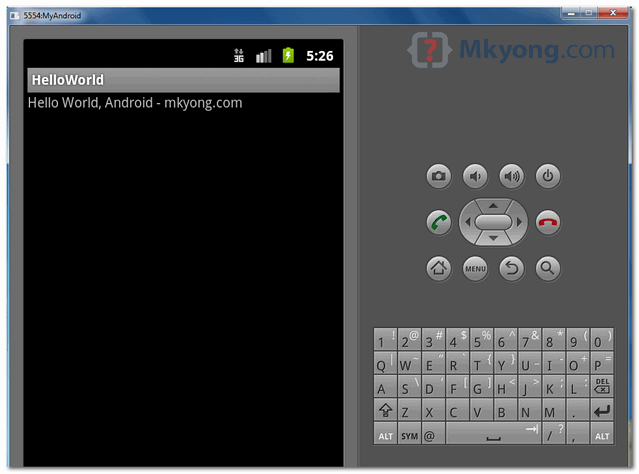
        text.setText("Hello World, Android - mkyong.com");
        setContentView(text);
    }
}
6. Demo
Run it as “Android Application“, see output.
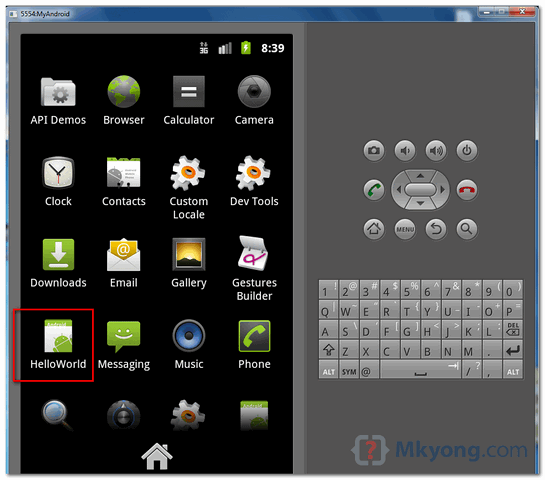
Press “Home” button (on right hand side), and you will noticed that “HelloWorld” application is deployed successfully on the Android virtual device.
This tutorial is more to example driven, not much explanation. For detail and complete explanation, please refer to the official Android developer hello world tutorial.
In my computer, the COMODO firewall is installed and blocked the deploying process, caused the connection between Eclipse ADT and AVD is blocked and failed to deploy. Just make sure your firewall is configured properly, or just turn it off for Android development :)
Sometime, “Android Virtual Device” is not enough to test some real phone functionalities, like led light, sensor and etc. Then you should refer to this how to debug Android application on real device.