原创博客:转载请标明出处:http://www.cnblogs.com/zxouxuewei/
The video describes connecting a Microsoft Kinect to the NVIDIA Jetson TK1 Development Kit.
The Kinect provides 3D depth information about a scene. This is commonly referred to as a RGBD device because the depth information is returned encoded in an RGB image, with the color of each pixel representing how far away an object is from the sensor. Red is close, green is in the middle, blue is furthest away.
The demonstration shows a Microsoft Kinect 360 model 1414, the original XBOX 360 sensor. The Jetson and the Kinect are plugged into a 7 port USB hub, along with a keyboard and a mouse.
Some more information about Kinect
first install the libusb,By means of manual compilation
Download the libusb-master.zip or Can contact me via email 1192916972@qq.com
sudo ./autogen.sh
sudo make
sudo make install
sudo ldconfig
Installing the OpenKinect Drivers
Installing the OpenKinect libraries (libfreenect) is straightforward. A prerequisite for this installation is Internet access and installation of the Universe package repositories. These commands are entered using the ‘Terminal’ app, which is commonly referred to as the command line.
Universe packages can be added with:
$ sudo apt-add-repository universe
$ sudo apt-get update$sudo apt-get install ros-indigo-openni*
To build the freenect library, first make sure that you have the build tools and library dependencies installed:
$ sudo apt-get install
cmake
freeglut3-dev
pkg-config
build-essential
libxmu-dev
libxi-dev
libusb-1.0-0-dev
Then Git clone the libfreenect repository:
$ git clone git://github.com/OpenKinect/libfreenect.git
Build libfreenect
To build the libfreenect library, start in the Home directory at the command line. Then enter the following commands:
$ cd libfreenect
$ mkdir build
$ cd build
$ cmake ..
$ make
$ sudo make install
NOTE: If you would like to uninstall libfreenect at some later time, go the ‘build’ directory:
$ sudo make uninstall
USB Autosuspend
As noted in the video, there is an issue with the default setting for USB ports being turned off when not in use. The Jetson does this to save energy. If this happens when the Kinect is connected, the Jetson will not recognize the Kinect. A solution is to execute commands automatically on every boot-up that alter this behavior. You can put your commands into the “/etc/rc.local” boot up script. For example, run this on your board:
$ sudo gedit /etc/rc.local
Then add this near the bottom of the file but before the “exit” line:
# Disable USB auto-suspend, since it disconnects some devices such as webcams on Jetson TK1.
echo -1 > /sys/module/usbcore/parameters/autosuspend
Save the file.
You then reboot the machine so that the changes take effect.
$ sudo reboot
NOTE: If you would like to do this more selectively, you can enter this command on the command line:
sudo bash -c ‘echo -1 > /sys/module/usbcore/parameters/autosuspend’
which will cause autosuspend to be turned off until the next boot cycle.
Sample Programs
Once the Jetson powers back up, and the Desktop appears on the screen. Plug in the Kinect to the USB hub. NOTE:You may have to unplug then plug back in the Kinect on every boot. The auto-suspension does not appear to take effect until after the port is powered down the first time. Navigate to the bin directory where the samples reside:
cd libfreenect/build/bin
and run one of the sample programs:
sudo ./freenect-glview
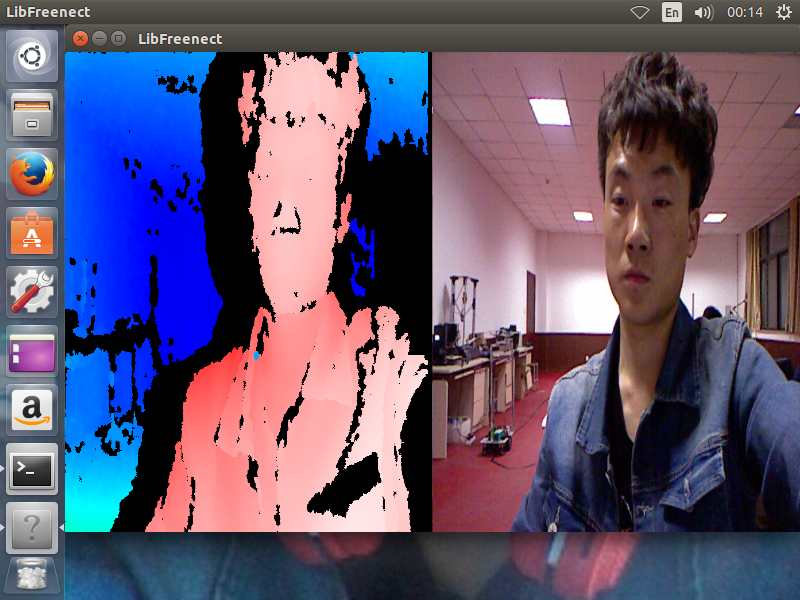
Then you are ready to play and have some fun!
Permissions
If you do not want to run your programs using sudo, you can add rules
to your udev rules directory. Place the file ’51-kinect.rules’ into
/etc/udev/rules.d directory, and set the video permissions.
First change your directory to your libfreenect/platform/linux/udev directory, then:
$ sudo adduser $USER video
$ sudo cp 51-kinect.rules /etc/udev/rules.d/51-kinect.rules
Make sure to log out and then log back in.