Sometimes you can get “VT-x is not available. (VERR_VMX_NO_VMX)” error if you are trying to start x64 bit virtual machine in VirtualBox.
Failed to open a session for the virtual machine Windows 10 TP.
VT-x is not available. (VERR_VMX_NO_VMX).
Result Code: E_FAIL (0x80004005)
Component: Console
Interface: IConsole {8ab7c520-2442-4b66-8d74-4ff1e195d2b6}
Advertisement from Google
There are three most common reasons for this error:
- Your CPU doesn’t support VT-x or AMD-V virtualization
- VT-x or AMD-V is not enabled in BIOS (UEFI)
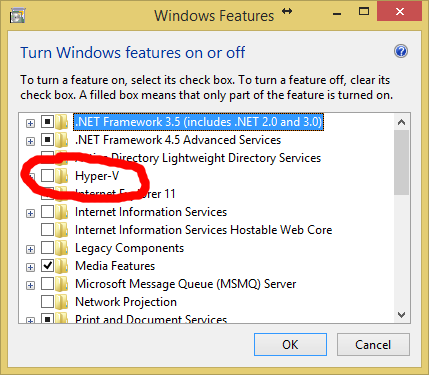
- You have Hyper-V virtualization enabled in Windows
You can fix first one only by replacing CPU with a new one, but it is easy to fix second and third reasons.
Solution 1: Enable VT-x in BIOS
- Restart your computer
- Load into BIOS (press Del, F2, Esc key. Depends on motherboard)
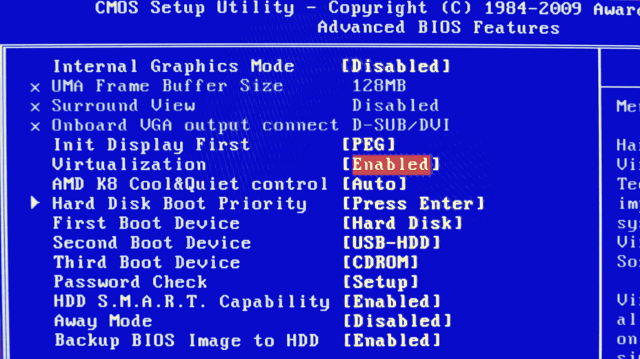
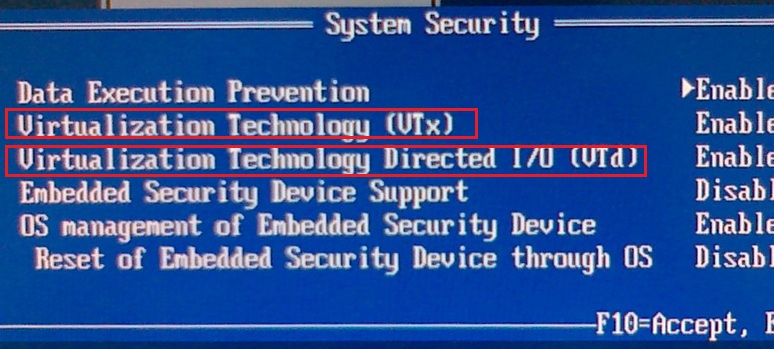
- Find Virtualization setting and enabled it. It might look different in you system, but here are some examples:



Solution 2: Disable Hyper-V virtualization
- Run cmd.exe as Administrator
- Execute:
1
dism.exe/Online/Disable-Feature:Microsoft-Hyper-V - Reboot computer
Another way:
- Open Control Panel
- Go to Program section -> Turn Windows features on or off
- Disable Hyper-V

- Reboot computer