基于WPF的自定义 MessageBox.
众所周知WPF界面美观.大多数WPF元素都可以简单的修改其样式,从而达到程序的风格统一.可是当你不得不弹出一个消息框通知用户消息时(虽然很不建议在程序中频繁的弹框,恩,我说的是不得不...).那个默认的System.Windows.MessageBox 就显得太丑陋,太不搭调了.因此想到怎么搞一个新的MessageBox替换掉默认的.有童鞋说WPF扩展包中提供了新的MessageBox,那也只是把MessageBox的样式从XP提高到了Win7样式而已,大多还是与完全自定义样式的WPF程序不搭调.貌似它也提供了修改样式的接口,不过没多少人会使用吧.也有人说,我随便自定义一个控件,或者随便在XAML中放一个POPUP 一个BORDER什么的 也可以模拟MessageBox的效果. 你累不?
屁话不多说了,正题开始...
/***********************************************万能分隔线,无视上面的一切吧**************************************************************/
一:首先自定义核心的东东.消息框本身也是个窗口.那么我么就需要重新继承一个Window类,这里起名 MessageBoxModule
class MessageBoxModule : Window
{
        static MessageBoxModule()
        {
        // 指定自定义 控件 搜索的 样式模板类型
            DefaultStyleKeyProperty.OverrideMetadata( typeof( MessageBoxModule ), new FrameworkPropertyMetadata( typeof( MessageBoxModule ) ) );
        }

        public MessageBoxModule()
        {
            try
            {
                this.WindowStartupLocation = System.Windows.WindowStartupLocation.CenterScreen;
                this.AllowsTransparency = true;
                this.WindowStyle = System.Windows.WindowStyle.None;
                this.ShowInTaskbar = false;
                this.Topmost = true;
                this.MouseLeftButtonDown += ( o, e ) =>
                {
                    this.DragMove();
                };

                // 为MessageBoxModule 挂载资源文件,为了使用资源中的一些 样式定义. 注意 Uri中路径的写法.
                Resources.Source = new Uri( @"/Vito.Csharp.Wpf.Controls;component/Themes/Generic.xaml", UriKind.Relative );
                if ( Resources.Contains( "MessageBoxButtonStyle" ) )
                {
                    MessageBoxModule.SetDefaultCtorButtonStyle( Resources["MessageBoxButtonStyle"] as Style );
                }


            }
            catch { }

        }
}
/Themes/Generic.xaml 样式模板我就不多说了.这里主要介绍些Messagebox的封装思路.
上面构造完,我们就得到了一个看起来类似消息框的窗口了. 消息框中需要有窗口标题,消息框显示内容,和消息框的响应按钮.接下来我们逐步完善此类.
下面我们在类中加入些属性.
        public new string Title
        {
            get { return (string)GetValue( TitleProperty ); }
            set { SetValue( TitleProperty, value ); }
        }

        public string Message
        {
            get { return (string)GetValue( MessageProperty ); }
            set { SetValue( MessageProperty, value ); }
        }

        public Brush TitleForeground
        {
            get { return (Brush)GetValue( TitleForegroundProperty ); }
            set { SetValue( TitleForegroundProperty, value ); }
        }

      // 自定义响应按钮的集合
        public IList<Button> CtrlButtonCollection
        {
            get { return (IList<Button>)GetValue( CtrlButtonCollectionProperty ); }
            set { SetValue( CtrlButtonCollectionProperty, value ); }
        }


        public new static readonly DependencyProperty TitleProperty =
    DependencyProperty.Register( "Title", typeof( string ), typeof( MessageBoxModule ), new PropertyMetadata( "标题" ) );

        public static readonly DependencyProperty MessageProperty =
    DependencyProperty.Register( "Message", typeof( string ), typeof( MessageBoxModule ), new PropertyMetadata( "" ) );

        public static readonly DependencyProperty TitleForegroundProperty =
    DependencyProperty.Register( "TitleForeground", typeof( Brush ), typeof( MessageBoxModule ), new PropertyMetadata( DefaultTitleForeground ) );

        public static readonly DependencyProperty CtrlButtonCollectionProperty =
    DependencyProperty.Register( "CtrlButtonCollection", typeof( IList<Button> ), typeof( MessageBoxModule ), new PropertyMetadata( new List<Button>() /*{ new Button() { Content = "确定" }, new Button() { Content = "取消" } }*/ ) );
其中 CtrlButtonCollection 属性为本消息框的特色了,他是一组可控的响应按钮集合.当你的消息框中不想使用默认提供的(eg: MessageBoxButton.OKCancel,MessageBoxButton.YesNo 等等)按钮时,可以使用该集合,我们后面再说.
MessageBoxModule 类作为消息框 那么一定要有Show方法呗,那么我们来提供一组MessageBoxModule.Show方法,为了看起来很牛x 我们直接Copy System.Windows.MessageBox的部分Show方法来重写.
public static MessageBoxResult Show( string messageBoxText )
{
 // ....
}

public static MessageBoxResult Show( string messageBoxText, string caption )
{
 // .......
}

public static MessageBoxResult Show( string messageBoxText, string caption, MessageBoxButton button )
{
 //  .......
}

public static MessageBoxResult Show( Window owner, string messageBoxText )
{
 //...
}

public static MessageBoxResult Show( Window owner, string messageBoxText, string caption, MessageBoxButton button )
{
 // ......
}

//特色
public static MessageBoxResult Show( Window owner, string messageBoxText, string caption, IList<MessageBoxButtonInfo> ctrlButtons )
{
 // ..
}
为了兼容同志们曾经的MessageBox.Show方法,我们这里定义的Show方法都和默认消息框的一样.多数情况下我们可能不需要自定义消息框按钮的文字样式等信息,所以我们提供了对
默认的 MessageBoxButton 枚举的支持. 这样我们可以只需要再想要替换新消息框的项目中加入自己的命名空间引用就可以了. 熟悉默认MessageBox的童鞋可能发现了上面的Show重载中没有提供对 MessageBoxImage 枚举的支持.是的,我故意没有加入对图片的支持. 因为我觉得加入个图片很有可能破坏我们整个应用程序的风格.而且其实这个图片的提示也没有那么重要.完全是我的个人见解.如果您需要MessageBoxImage 那么您可以来完善这个.
大致思路: 因为MessageBoxImage也是枚举,那么我们需要在我们的控件库中加入默认的图片对应.不过,我建议不要使用图片资源,该用Path,路径来替代图片.因为如果使用某些个图片作为默认资源,由于图片无法动态修改前景 背景颜色,所以默认实用性不大,而路径可以完全支持 大小,颜色的变换.(鄙人完全不建议在WPF的程序中使用任何图片!应用程序背景,按钮背景,特效之类的,完全可以使用WPF强大的颜色渲染和路径支持来替代.) 根据传入的MessageBoxImage值动态Binding指定的图片(路径)就行了.
上面前四个Show都是对后面的调用.所以我们大概看一下后2个SHow方法的实现.
public static MessageBoxResult Show( Window owner, string messageBoxText, string caption, MessageBoxButton button )
        {
            var mbox = new MessageBoxModule();
            mbox.Message = messageBoxText;
            mbox.Title = caption;
            mbox.Owner = owner;
        // 这个方法是检测本次弹出的消息框是否使用了自定义的颜色配置,而不是使用默认提供的颜色配置.后面再说,这里无视.
            IsUseCustomInfoDefine( ref mbox );

            if ( owner != null )
            {
                mbox.WindowStartupLocation = WindowStartupLocation.CenterOwner;
            }

        //这里的分支语句提供了传入MessageBoxButton枚举的具体响应实现. 其中CreateCtrlButton_ResultTrue,CreateCtrlButton_ResultFalse
        // 等方法是创建一个按钮 并默认了按钮的响应 和Show方法完成后返回的结果. // 后面在看.

            switch ( button )
            {
                case MessageBoxButton.OKCancel:

                    mbox.CtrlButtonCollection.Add( CreateCtrlButton_ResultTrue( mbox, "确定" ) );

                    mbox.CtrlButtonCollection.Add( CreateCtrlButton_ResultFalse( mbox, "取消" ) );
                    break;
                //break;
                case MessageBoxButton.YesNo:
                    mbox.CtrlButtonCollection.Add( CreateCtrlButton_ResultTrue( mbox, "是" ) );

                    mbox.CtrlButtonCollection.Add( CreateCtrlButton_ResultFalse( mbox, "否" ) );

                    break;
                case MessageBoxButton.YesNoCancel:
                    mbox.CtrlButtonCollection.Add( CreateCtrlButton_ResultTrue( mbox, "是" ) );

                    mbox.CtrlButtonCollection.Add( CreateCtrlButton_ResultFalse( mbox, "否" ) );

                    mbox.CtrlButtonCollection.Add( CreateCtrlButton_ResultFalse( mbox, "取消" ) );
                    break;
                case MessageBoxButton.OK:
                default:
                    mbox.CtrlButtonCollection.Add( CreateCtrlButton_ResultTrue( mbox, "确定" ) );
                    break;
            }
            var result = mbox.ShowDialog();  // 本行代码是消息框弹出的核心.ShowDialog方法会打开一个模态对话框.等待返回结果.这里的结果不是MessageBoxResult枚举而是可空类型的布尔值(bool?) true对应着MessageBoxResult.Yes ,MessageBoxResult.OK的值.false对应着MessageBoxResult.Cancel,MessageBoxResult.No 的值.
      // 了解这些我们就可以对ShowDialog方法返回值做MessageBoxResult转换了.

            switch ( button )
            {

                //break;
                case MessageBoxButton.OKCancel:
                    {
                        return result == true ? MessageBoxResult.OK
                            : result == false ? MessageBoxResult.Cancel :
                            MessageBoxResult.None;
                    }
                //break;
                case MessageBoxButton.YesNo:
                    {
                        return result == true ? MessageBoxResult.Yes : MessageBoxResult.No;
                    }
                //break;
                case MessageBoxButton.YesNoCancel:
                    {
                        return result == true ? MessageBoxResult.Yes
                            : result == false ? MessageBoxResult.No :
                            MessageBoxResult.Cancel;
                    }

                case MessageBoxButton.OK:
                default:
                    {
                        return result == true ? MessageBoxResult.OK : MessageBoxResult.None;
                    }
            }
        }
        private static Button CreateCtrlButton_ResultTrue( MessageBoxModule mbox, string content )
        {
            return CreateCtrlButton( content, new RoutedEventHandler( ( o, e ) =>
            {
                try
                {   // 这里的DialogResult = true 赋值,表示着 Show方法的返回值可能为 Yes OK的值.
            // 所以这个方法支持了MessageBoxButton.OKCancel,MessageBoxButton.YesNo,MessageBoxButton.OK ,MessageBoxButton.YesNoCancel
            // 枚举中的Yes Ok部分的支持. 同理另外2个方法类似.

                    mbox.DialogResult = true;
                    //mbox.Close();
                }
                catch { }
            } ) );
        }

        private static Button CreateCtrlButton_ResultFalse( MessageBoxModule mbox, string content )
        {
            return CreateCtrlButton( content, new RoutedEventHandler( ( o, e ) =>
            {
                try
                {
                    mbox.DialogResult = false;
                    //mbox.Close();
                }
                catch { }
            } ) );
        }

        private static Button CreateCtrlButton_ResultNull( MessageBoxModule mbox, string content )
        {
            return CreateCtrlButton( content, new RoutedEventHandler( ( o, e ) =>
            {
                try
                {
                    mbox.DialogResult = null;
                    //mbox.Close();
                }
                catch { }
            } ) );
        }
到此,我们就完成了默认提供的Show方法的实现了.下面来看自定义的部分. 首先来看一下 MessageBoxButtonInfo这个类,
    /// <summary>
    /// Vito.Csharp.Wpf.Controls.MessageBoxModule 组件中 MessageBoxButton 的自定义设置信息.
    /// </summary>
    public class MessageBoxButtonInfo
    {
        #region fields

        private string _contentText = "";
        private MessageBoxResult _result = MessageBoxResult.OK;
        private Action<object> _action = null;

        #endregion // fields

        #region ctor

        /// <summary>
        /// 初始化 MIV.Bus.IEMS.MessageBox 自定义按钮的基本信息.
        /// </summary>
        /// <param name="contentText">按钮的文本内容</param>
        /// <param name="result">按钮响应的返回结果</param>
        /// <param name="action">按钮的响应动作</param>
        public MessageBoxButtonInfo( string contentText, MessageBoxResult result, Action<object> action )
        {
            this._contentText = contentText;
            this._result = result;
            if ( null != action )
            {
                this._action = action;
            }
            else
            {
                this._action = new Action<object>( ( o ) =>
                {

                } );
            }
        }

        #endregion // ctor

        #region Readonly Properties

        /// <summary>
        /// 获取 MIV.Bus.IEMS.MessageBox 按钮的文本内容.
        /// </summary>
        public string ContentText
        {
            get { return _contentText; }
        }

        /// <summary>
        /// 获取 MIV.Bus.IEMS.MessageBox 按钮响应的返回结果.
        /// </summary>
        public MessageBoxResult Result
        {
            get { return _result; }
        }

        /// <summary>
        /// 获取 MIV.Bus.IEMS.MessageBox 按钮的响应动作.
        /// </summary>
        public Action<object> Action
        {
            get { return _action; }
        }

        #endregion // Readonly Properties
    }
这个类中包含了一些自定义按钮需要的参数.
ContentText 表示着自定义按钮中的显示文本(eg:例如 我想要显示"确认""取消""是""否"之类的文字,我要显示"不了,谢谢"字样的类似取消功能的按钮,那么这个参数就是携带该值的).
Result 指示了本个自定义的按钮响应后文本框返回什么值(这个是之前版本的遗留,现在没啥用处了.暂时无视.)
Action 表示本个按钮的响应方法. 需要在按了按钮之后做什么,那就传递给它吧.
下面看详细的Show方法实现.
        public static MessageBoxResult Show( Window owner, string messageBoxText, string caption, IList<MessageBoxButtonInfo> ctrlButtons )
        {
            var mbox = new MessageBoxModule();
            mbox.Message = messageBoxText;
            mbox.Title = caption;
            mbox.Owner = owner;

            IsUseCustomInfoDefine( ref mbox ); // 同上,检测是否使用自定义主题颜色的配置.

            if ( owner != null )
            {
                mbox.WindowStartupLocation = WindowStartupLocation.CenterOwner;
            }

            if ( null != ctrlButtons && ctrlButtons.Count > 0 )
            {
                foreach ( var btnInfo in ctrlButtons )
                {
                    switch ( btnInfo.Result )
                    {
                        case MessageBoxResult.Cancel:
                        case MessageBoxResult.No:
                            {
                                var btn = CreateCtrlButton_ResultFalse( mbox, btnInfo.ContentText );
                                btn.Command = new MessageBoxCommand( btnInfo.Action );  // 为按钮关联响应动作. 这里我把Action封装为了命令.MessageBoxCommand为自定义的命令.
                                mbox.CtrlButtonCollection.Add( btn );
                            }
                            break;
                        case MessageBoxResult.None:
                            {
                                var btn = CreateCtrlButton_ResultNull( mbox, btnInfo.ContentText );
                                btn.Command = new MessageBoxCommand( btnInfo.Action );
                                mbox.CtrlButtonCollection.Add( btn );
                            }
                            break;
                        case MessageBoxResult.OK:
                        case MessageBoxResult.Yes:
                        default:
                            {
                                var btn = CreateCtrlButton_ResultTrue( mbox, btnInfo.ContentText );
                                btn.Command = new MessageBoxCommand( btnInfo.Action );
                                mbox.CtrlButtonCollection.Add( btn );
                            }
                            break;
                    }
                }

                var result = mbox.ShowDialog(); //同上一个Show方法.这里调用会显示一个模态窗口.
                return MessageBoxResult.None;//为啥我说MessageBoxButtonInfo类中的Result没用了,因为这里我始终返回None了.返回结果的目的是为了根据不同的结果做不同的处理,而这里的Action已经对其作出了响应.所以返回结果的用处不大.
            }
            else
            {
                return Show( owner, messageBoxText, caption, MessageBoxButton.OK );
            }


        }
MessageBoxCommand 实现:
    /// <summary>
    /// MIV.Bus.IEMS.MessageBoxModule 组件的自定义事件
    /// </summary>
    public class MessageBoxCommand : ICommand
    {
        #region Private Fields
        private readonly Action<object> _command;
        private readonly Func<object, bool> _canExecute;
        #endregion

        #region Constructor
        public MessageBoxCommand( Action<object> command, Func<object, bool> canExecute = null )
        {
            if ( command == null )
                throw new ArgumentNullException( "command" );
            _canExecute = canExecute;
            _command = command;
        }
        #endregion

        #region ICommand Members
        public void Execute( object parameter )
        {
            _command( parameter );
        }
        public bool CanExecute( object parameter )
        {
            if ( _canExecute == null )
                return true;
            return _canExecute( parameter );
        }
        public event EventHandler CanExecuteChanged
        {
            add { CommandManager.RequerySuggested += value; }
            remove { CommandManager.RequerySuggested -= value; }
        }
        #endregion
    }
自定义命令.网上一堆文字,这里不做解释了.
到这里,基本的Messagebox就已经完成了.我们可以使用 MessageBoxModule.Show 方法来实现消息框. 当我们敲出MessageBoxModule.的时候,我们会发现,次奥!MessageBoxModule下面弹出的东西怎么这么多? 好乱啊,各种静态方法,DependencyProperty 之类的.而默认的MessageBox.弹出来的只有区区 Show,ReferenceEquals ,Equals三个方法.一眼就看到了Show.
再者,我们跳转到MessageBox类时可以看到 这个类是"public sealed class MessageBox" 是密封的,并且也不是继承Window的类.那么他是怎么实现的呢?很简单,包装一下而已. 隐藏掉了真正的窗口,留给我们使用的只是一个功能类而已.这样使用者就不可以在界面中加入MessageBox.也无法搞其他的东西了.吐槽一下MS...
我们也来封装一下我们自己的MessageBox类.如下:
    /// <summary>
    /// 显示消息框.
    /// </summary>
    public sealed class MessageBox
    {
        #region ctors

        static MessageBox()
        {
        }
        private MessageBox()
        {
        }

        #endregion // ctors

        #region custom settings

        /// <summary>
        /// 设置 MIV.Bus.IEMS.MessageBox 的按钮样式.
        /// </summary>
        /// <param name="buttonStyle"></param>
        public static void SetDefaultCtorButtonStyle( Style buttonStyle )
        {
            MessageBoxModule.SetDefaultCtorButtonStyle( buttonStyle );
        }

        /// <summary>
        /// 设置 MIV.Bus.IEMS.MessageBox 的一些自定义信息.
        /// </summary>
        /// <param name="mbCustomIf">MIV.Bus.IEMS.MessageBox 自定义信息结构</param>
        public static void SetMessageBoxCustomDefine( MessageBoxCustomInfo mbCustomIf )
        {
            MessageBoxModule.SetMessageBoxCustomDefine( mbCustomIf );
        }

        public static void ResetMessageBoxCustomDefine()
        {
            MessageBoxModule.ResetMessageBoxCustomDefine();
        }

        #endregion // custom settings

        #region Show functions

        /// <summary>
        /// 显示一个消息框,该消息框包含消息并返回结果。
        /// </summary>
        /// <param name="messageBoxText">一个 System.String,用于指定要显示的文本。</param>
        /// <returns>一个 System.Windows.MessageBoxResult 值,用于指定用户单击了哪个消息框按钮。</returns>
        public static MessageBoxResult Show( string messageBoxText )
        {
            return MessageBoxModule.Show( messageBoxText );
        }

        /// <summary>
        /// 显示一个消息框,该消息框包含消息和标题栏标题,并且返回结果。
        /// </summary>
        /// <param name="messageBoxText">一个 System.String,用于指定要显示的文本。</param>
        /// <param name="caption"> 一个 System.String,用于指定要显示的标题栏标题。</param>
        /// <returns>一个 System.Windows.MessageBoxResult 值,用于指定用户单击了哪个消息框按钮。</returns>
        public static MessageBoxResult Show( string messageBoxText, string caption )
        {
            return MessageBoxModule.Show( messageBoxText, caption );
        }

        /// <summary>
        /// 显示一个消息框,该消息框包含消息、标题栏标题和按钮,并且返回结果。
        /// </summary>
        /// <param name="messageBoxText">一个 System.String,用于指定要显示的文本。</param>
        /// <param name="caption"> 一个 System.String,用于指定要显示的标题栏标题。</param>
        /// <param name="button">一个 System.Windows.MessageBoxButton 值,用于指定要显示哪个按钮或哪些按钮。</param>
        /// <returns>一个 System.Windows.MessageBoxResult 值,用于指定用户单击了哪个消息框按钮。</returns>
        public static MessageBoxResult Show( string messageBoxText, string caption, MessageBoxButton button )
        {
            return MessageBoxModule.Show( messageBoxText, caption, button );
        }

        /// <summary>
        /// 在指定窗口的前面显示消息框。该消息框显示消息并返回结果。
        /// </summary>
        /// <param name="owner">一个 System.Windows.Window,表示消息框的所有者窗口。</param>
        /// <param name="messageBoxText">一个 System.String,用于指定要显示的文本。</param>
        /// <returns> 一个 System.Windows.MessageBoxResult 值,用于指定用户单击了哪个消息框按钮。</returns>
        public static MessageBoxResult Show( Window owner, string messageBoxText )
        {
            return MessageBoxModule.Show( owner, messageBoxText );
        }

        /// <summary>
        ///  在指定窗口的前面显示消息框。该消息框显示消息、标题栏标题和按钮,并且返回结果。
        /// </summary>
        /// <param name="owner"> 一个 System.Windows.Window,表示消息框的所有者窗口。</param>
        /// <param name="messageBoxText">一个 System.String,用于指定要显示的文本。</param>
        /// <param name="caption"> 一个 System.String,用于指定要显示的标题栏标题。</param>
        /// <param name="button">一个 System.Windows.MessageBoxButton 值,用于指定要显示哪个按钮或哪些按钮。</param>
        /// <returns> 一个 System.Windows.MessageBoxResult 值,用于指定用户单击了哪个消息框按钮。</returns>
        public static MessageBoxResult Show( Window owner, string messageBoxText, string caption, MessageBoxButton button )
        {
            return MessageBoxModule.Show( owner, messageBoxText, caption, button );
        }

        /// <summary>
        /// 在指定窗口的前面显示消息框。该消息框显示消息、标题栏标题和按钮,并且支持自定义按钮和动作。
        /// </summary>
        /// <param name="owner"> 一个 System.Windows.Window,表示消息框的所有者窗口。</param>
        /// <param name="messageBoxText">一个 System.String,用于指定要显示的文本。</param>
        /// <param name="caption"> 一个 System.String,用于指定要显示的标题栏标题。</param>
        /// <param name="ctrlButtons">一组自定义的按钮和响应动作。</param>
        /// <returns>始终为 MessageBoxResult.None ,返回结果在此无意义。</returns>
        public static MessageBoxResult Show( Window owner, string messageBoxText, string caption, IList<MessageBoxButtonInfo> ctrlButtons )
        {
            return MessageBoxModule.Show( owner, messageBoxText, caption, ctrlButtons );
        }

        #endregion // Show functions
    }
简单吧?只是对MessageBoxModule的调用而已.为了让使用者必须使用 MessageBox类而无法使用 MessageBoxModule 类.我们修改其限定:
internal sealed class MessageBoxModule : Window
{
 //.........
}
这回在外部看不到 MessageBoxModule了吧. MessageBox.Show(......) OY~ 安逸的很~
为了提供对自定义样式 颜色的支持. 我们也加入了一些其他的方法:
        #region Public Static Functions
      // 设置 消息框中响应按钮的样式. 静态存储.针对所有调用的消息框.
        public static void SetDefaultCtorButtonStyle( Style buttonStyle )
        {
            CTRL_BUTTON_STYLE = buttonStyle;
        }
      // 设置 消息框中的 标题 文本 边框 前景 背景等 以配合我们的应用程序主题风格.
      // 其中 MessageBoxCustomInfo 为自定义的结构 存储以上的信息.

        public static void SetMessageBoxCustomDefine( MessageBoxCustomInfo mbCustomIf )
        {
            if ( !default( MessageBoxCustomInfo ).Equals( mbCustomIf ) )
            {
                MessageBoxModule.MB_CUSTOMINFO = mbCustomIf;
                MessageBoxModule.B_USED_CUSTOM_BRUSHES = true;
            }
            else
            {
                MessageBoxModule.MB_CUSTOMINFO = default( MessageBoxCustomInfo );
                MessageBoxModule.B_USED_CUSTOM_BRUSHES = false;
            }
        }

        public static void ResetMessageBoxCustomDefine()
        {
            CTRL_BUTTON_STYLE = Button.StyleProperty.DefaultMetadata.DefaultValue as Style;
            MB_CUSTOMINFO = default( MessageBoxCustomInfo );
            B_USED_CUSTOM_BRUSHES = false;
        }

        #region Show MessageBox Functions
MessageBoxCustomInfo结构:
    /// <summary>
    /// MIV.Bus.IEMS.MessageBox 自定义信息结构.
    /// </summary>
    public struct MessageBoxCustomInfo
    {
        #region private fields
      // 一下布尔值表示 那些属性为有效的. 在其有效时 才在MessageBox中赋值,否则 继续使用默认提供的值.
        private bool isBackgroundChanged;
        private bool isTitleForegroundChanged;
        private bool isForegroundChanged;
        private bool isBorderBrushChanged;
        private bool isBorderThicknessChanged;

        private Brush mb_background;
        private Brush mb_title_foreground;
        private Brush mb_foreground;
        private Brush mb_borderbrush;
        private Thickness mb_borderthickness;

        #endregion // private fields

        #region public properties

        public bool IsBackgroundChanged
        {
            get { return isBackgroundChanged; }
        }
        public bool IsTitleForegroundChanged
        {
            get { return isTitleForegroundChanged; }
        }
        public bool IsForegroundChanged
        {
            get { return isForegroundChanged; }
        }
        public bool IsBorderBrushChanged
        {
            get { return isBorderBrushChanged; }
        }
        public bool IsBorderThicknessChanged
        {
            get { return isBorderThicknessChanged; }
        }


        public Brush MB_Background
        {
            get { return mb_background; }
            set
            {
                mb_background = value;
                isBackgroundChanged = true;
            }
        }
        public Brush MB_Title_Foreground
        {
            get { return mb_title_foreground; }
            set
            {
                mb_title_foreground = value;
                isTitleForegroundChanged = true;
            }
        }
        public Brush MB_Foreground
        {
            get { return mb_foreground; }
            set
            {
                mb_foreground = value;
                isForegroundChanged = true;
            }
        }
        public Brush MB_Borderbrush
        {
            get { return mb_borderbrush; }
            set
            {
                mb_borderbrush = value;
                isBorderBrushChanged = true;
            }
        }
        public Thickness MB_BorderThickness
        {
            get { return mb_borderthickness; }
            set
            {
                mb_borderthickness = value;
                isBorderThicknessChanged = true;
            }
        }

        #endregion // public properties
    }
IsUseCustomInfoDefine方法: 上面曾被2次略过....(=.=!) 判断是否使用自定义的信息(说的就是 MessageBoxCustomInfo 啦)
        private static void IsUseCustomInfoDefine( ref MessageBoxModule mbox )
        {
        // 判断每一个属性,有效时才赋值 否则忽略.
            if ( B_USED_CUSTOM_BRUSHES && null != mbox )
            {
                if ( MB_CUSTOMINFO.IsBackgroundChanged )
                {
                    mbox.Background = MB_CUSTOMINFO.MB_Background;
                }
                if ( MB_CUSTOMINFO.IsBorderBrushChanged )
                {
                    mbox.BorderBrush = MB_CUSTOMINFO.MB_Borderbrush;
                }
                if ( MB_CUSTOMINFO.IsBorderThicknessChanged )
                {
                    mbox.BorderThickness = MB_CUSTOMINFO.MB_BorderThickness;
                }
                if ( MB_CUSTOMINFO.IsForegroundChanged )
                {
                    mbox.Foreground = MB_CUSTOMINFO.MB_Foreground;
                }
                if ( MB_CUSTOMINFO.IsTitleForegroundChanged )
                {
                    mbox.TitleForeground = MB_CUSTOMINFO.MB_Title_Foreground;
                }
            }
        }
具体调用方法:
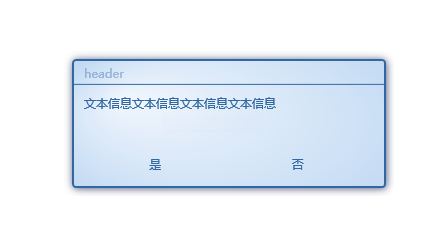
    // 修改默认的主题颜色.        Vito.Csharp.Wpf.Controls.MessageBox.SetMessageBoxCustomDefine( new MessageBoxCustomInfo()
            {
                MB_Background = Brushes.Red,
                MB_Borderbrush = Brushes.Orange,
                MB_BorderThickness = new Thickness( 4 ),
                MB_Foreground = Brushes.White,
                MB_Title_Foreground = Brushes.Green
            } );

// 先设置自定义信息,再调用Show

Vito.Csharp.Wpf.Controls.MessageBox.Show( this, "文本信息文本信息文本信息文本信息", "header", MessageBoxButton.YesNo );
自定义 Messagebox 的响应按钮信息 的使用方法:
            #region 自定义 Messagebox 的响应按钮信息.
            List<MessageBoxButtonInfo> list = new List<MessageBoxButtonInfo>();
            list.Add( new MessageBoxButtonInfo( "按钮Yes", MessageBoxResult.Yes, new Action<object>( ( o ) =>
                { // 这里是 点击的响应动作 Action 上面已经讲过.
                    Vito.Csharp.Wpf.Controls.MessageBox.Show( "你点击了按钮Yes" );
                } ) ) );

            list.Add( new MessageBoxButtonInfo( "按钮No", MessageBoxResult.No, new Action<object>( ( o ) =>
            {
                Vito.Csharp.Wpf.Controls.MessageBox.Show( "你点击了按钮No" );
            } ) ) );

            list.Add( new MessageBoxButtonInfo( "按钮OK", MessageBoxResult.OK, new Action<object>( ( o ) =>
            {
                Vito.Csharp.Wpf.Controls.MessageBox.Show( "你点击了按钮OK" );
            } ) ) );

            list.Add( new MessageBoxButtonInfo( "按钮Cancel", MessageBoxResult.Cancel, new Action<object>( ( o ) =>
            {
                Vito.Csharp.Wpf.Controls.MessageBox.Show( "你点击了按钮Cancel" );
            } ) ) );
            list.Add( new MessageBoxButtonInfo( "按钮Cancel1", MessageBoxResult.Cancel, new Action<object>( ( o ) =>
            {
                Vito.Csharp.Wpf.Controls.MessageBox.Show( "你点击了按钮Cancel1" );
            } ) ) );


            #endregion //
            // 调用
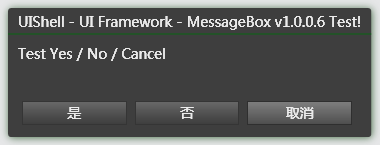
            r = Vito.Csharp.Wpf.Controls.MessageBox.Show( this, "文本信息文本信息文本信息文本信息文本信息文本信息", "Header", list );
好了到此就已经完成了.XAML资源也贴下一吧


<ResourceDictionary
    xmlns="http://schemas.microsoft.com/winfx/2006/xaml/presentation"
    xmlns:x="http://schemas.microsoft.com/winfx/2006/xaml"
    xmlns:local="clr-namespace:Vito.Csharp.Wpf.Controls">

    <SolidColorBrush x:Key="TM_SubHeaderBackground"
                     Color="#FF2D64A0" />
    <SolidColorBrush x:Key="TM_MouseOverBorderBrush"
                     Color="#FFA4BBD4" />
    <SolidColorBrush x:Key="TM_SubTitleForeground"
                     Color="#FFFBFBFB" />
    <SolidColorBrush x:Key="TM_Textbackground"
                     Color="#FFD9DFEC" />
    <SolidColorBrush x:Key="TM_BackgroundBrush"
                     Color="#ffd1e7ff" />
    <SolidColorBrush x:Key="TM_ButtonNormalBorder"
                     Color="Transparent" />
    <LinearGradientBrush x:Key="TM_ButtonMouseOverBackground"
                         EndPoint="0.5,1"
                         StartPoint="0.5,0">
        <GradientStop Color="#FF0D66C4" />
        <GradientStop Color="#FF328FF3"
                      Offset="1" />
    </LinearGradientBrush>
    <LinearGradientBrush x:Key="TM_ButtonPressBackground"
                         EndPoint="0.5,1"
                         StartPoint="0.5,0">
        <GradientStop Color="#FF0D66C4" />
        <GradientStop Color="#FF0B498B"
                      Offset="1" />
    </LinearGradientBrush>
    <SolidColorBrush x:Key="TM_TransparentBrush"
                     Color="Transparent" />

    <RadialGradientBrush  x:Key="MessageBoxBackground"
                                 GradientOrigin="0.158,0.301"
                                     Center="0.544,0.54"
                                     RadiusY="0.842"
                                     RadiusX="0.664">
                    <GradientStop Color="#FFC0D8F3"
                                  Offset="1" />
                    <GradientStop Color="#FFF0F6FD" />
                </RadialGradientBrush>
    <Style x:Key="MessageBoxButtonStyle"
           TargetType="{x:Type Button}">
        <Setter Property="Focusable"
                Value="False" />
        <!--<Setter Property="Foreground"
                Value="{DynamicResource TM_SubTitleForeground}" />-->
        <Setter Property="Padding"
                Value="2" />
        <Setter Property="BorderThickness"
                Value="1" />
        <Setter Property="Background"
                Value="{DynamicResource TM_BackgroundBrush}" />
        <Setter Property="BorderBrush"
                Value="{DynamicResource TM_TransparentBrush}" />
        <Setter Property="Foreground"
                Value="{DynamicResource TM_SubHeaderBackground}" />
        <Setter Property="HorizontalAlignment"
                Value="Center" />
        <Setter Property="VerticalAlignment"
                Value="Center" />
        <Setter Property="HorizontalContentAlignment"
                Value="Center" />
        <Setter Property="VerticalContentAlignment"
                Value="Center" />
        <Setter Property="Template">
            <Setter.Value>
                <ControlTemplate TargetType="{x:Type Button}">
                    <Border x:Name="Bd"
                            BorderBrush="{TemplateBinding BorderBrush}"
                            BorderThickness="{TemplateBinding BorderThickness}"
                            Background="{TemplateBinding Background}"
                            Padding="{TemplateBinding Padding}"
                            SnapsToDevicePixels="True">
                        <ContentPresenter ContentTemplate="{TemplateBinding ContentTemplate}"
                                          Content="{TemplateBinding Content}"
                                          ContentStringFormat="{TemplateBinding ContentStringFormat}"
                                          HorizontalAlignment="{TemplateBinding HorizontalContentAlignment}"
                                          SnapsToDevicePixels="{TemplateBinding SnapsToDevicePixels}"
                                          VerticalAlignment="{TemplateBinding VerticalContentAlignment}" />
                    </Border>
                    <ControlTemplate.Triggers>
                        <Trigger Property="IsMouseOver"
                                 Value="True">
                            <Setter Property="BorderBrush"
                                    TargetName="Bd"
                                    Value="#FF3399FF" />
                            <Setter Property="Background"
                                    TargetName="Bd"
                                    Value="{DynamicResource TM_ButtonMouseOverBackground}" />
                            <Setter Property="Foreground"
                                    Value="{StaticResource TM_Textbackground}" />
                        </Trigger>
                        <Trigger Property="IsKeyboardFocused"
                                 Value="True">
                            <Setter Property="BorderBrush"
                                    TargetName="Bd"
                                    Value="#FF3399FF" />
                            <Setter Property="Background"
                                    TargetName="Bd"
                                    Value="{DynamicResource TM_ButtonMouseOverBackground}" />
                        </Trigger>
                        <Trigger Property="IsPressed"
                                 Value="True">
                            <Setter Property="BorderBrush"
                                    TargetName="Bd"
                                    Value="#FF3399FF" />
                            <Setter Property="Background"
                                    TargetName="Bd"
                                    Value="{DynamicResource TM_ButtonPressBackground}" />
                        </Trigger>
                        <Trigger Property="IsEnabled"
                                 Value="False">
                            <Setter Property="Foreground"
                                    Value="{DynamicResource {x:Static SystemColors.GrayTextBrushKey}}" />
                        </Trigger>
                    </ControlTemplate.Triggers>
                </ControlTemplate>
            </Setter.Value>
        </Setter>
    </Style>

    <ControlTemplate x:Key="MessageBoxCT"
                     TargetType="{x:Type local:MessageBoxModule}">
        <Border Background="{TemplateBinding Background}"
                BorderBrush="{TemplateBinding BorderBrush}"
                BorderThickness="{TemplateBinding BorderThickness}"
                CornerRadius="3" Margin="8">
            <Border.Effect>
                <DropShadowEffect Color="#FF004289"
                                  Opacity="0.705"
                                  BlurRadius="12" ShadowDepth="1" />
            </Border.Effect>
            <Grid x:Name="grid">
                <Grid.RowDefinitions>
                    <RowDefinition Height="auto" />
                    <RowDefinition Height="*" />
                    <RowDefinition Height="auto" />
                </Grid.RowDefinitions>
                <TextBlock x:Name="textBlock" Text="{TemplateBinding Title}"
                           Grid.Row="0"
                           Margin="10,4"
                           TextTrimming="CharacterEllipsis"
                           Foreground="{TemplateBinding TitleForeground}" />
                <Border Grid.Row="0"
                        BorderBrush="{TemplateBinding BorderBrush}" BorderThickness="0,0,0,1"/>
                <TextBlock Text="{TemplateBinding Message}"
                           Grid.Row="1"
                           Margin="10"
                           TextTrimming="None"
                           Foreground="{TemplateBinding Foreground}"
                           TextWrapping="WrapWithOverflow"
                           FontSize="{TemplateBinding FontSize}" />
                <ItemsControl Grid.Row="2"

                              Margin="10"
                              ItemsSource="{TemplateBinding CtrlButtonCollection}"
                              ScrollViewer.VerticalScrollBarVisibility="Disabled"
                              HorizontalContentAlignment="Center"
                              VerticalContentAlignment="Center"
                              Padding="0,0,5,0">
                    <ItemsControl.ItemsPanel>
                        <ItemsPanelTemplate>
                            <UniformGrid Rows="1" />
                        </ItemsPanelTemplate>
                    </ItemsControl.ItemsPanel>
                </ItemsControl>

            </Grid>
        </Border>
    </ControlTemplate>

    <Style TargetType="{x:Type local:MessageBoxModule}">
        <Style.Resources>
            <Storyboard x:Key="sbOpShow">

                <DoubleAnimationUsingKeyFrames Storyboard.TargetProperty="(UIElement.Opacity)" Storyboard.TargetName="{x:Null}">
                    <EasingDoubleKeyFrame KeyTime="0" Value="0"/>
                    <EasingDoubleKeyFrame KeyTime="0:0:0.15" Value="0.975"/>
                </DoubleAnimationUsingKeyFrames>

            </Storyboard>
        </Style.Resources>
        <Style.Triggers>
            <EventTrigger RoutedEvent="FrameworkElement.Loaded">
                <BeginStoryboard Storyboard="{StaticResource sbOpShow}"/>
            </EventTrigger>
        </Style.Triggers>

        <Setter Property="ResizeMode"
                Value="NoResize" />
        <Setter Property="SizeToContent"
                Value="WidthAndHeight" />
        <Setter Property="MinWidth"
                Value="330" />
        <Setter Property="MinHeight"
                Value="145" />
        <Setter Property="MaxWidth"
                Value="600" />
        <Setter Property="MaxHeight"
                Value="330" />
        <Setter Property="WindowStyle"
                Value="None" />
        <Setter Property="Background"
                Value="{DynamicResource MessageBoxBackground}" />
        <Setter Property="Foreground"
                Value="{StaticResource TM_SubHeaderBackground}" />
        <Setter Property="AllowsTransparency"
                Value="True" />
        <Setter Property="BorderThickness" Value="2"/>
        <Setter Property="BorderBrush" Value="{DynamicResource TM_SubHeaderBackground}"/>
        <Setter Property="Opacity" Value="0"/>
        <Setter Property="Template"
                Value="{StaticResource MessageBoxCT}" />
    </Style>
</ResourceDictionary>
CSDN源码传送门:
新版Code : WPF自定义MessageBox完善版 v2 (源码)
NOTICE: 上面的传送门Code为改进新版的Code, 与上面文章内容多有不同. 请注意.

感谢 @SubmarineX 童鞋提出的Bug.此问题在实际应用中已经被fixed.
各位朋友有建议我改为免费,我已经改成免费了.谢谢大家的建议!
/*******************************************************/
欢迎转载!欢迎拍砖!
版权所有 © Vito野子
E-mail: vito2015@live.com
转载请注明出处 http://www.cnblogs.com/Vito2008/p/MessageBox.html
/*******************************************************/